

The page shows as Connected apps once it is switched on for your workspace. Until then, the same entry is called Sources and lists only the calendars your booking services use, and the ad account has its own Ad account entry. Once it is on, Sources becomes Connected apps and the separate Ad account entry goes: the ad account is on this page instead.
What is on the page
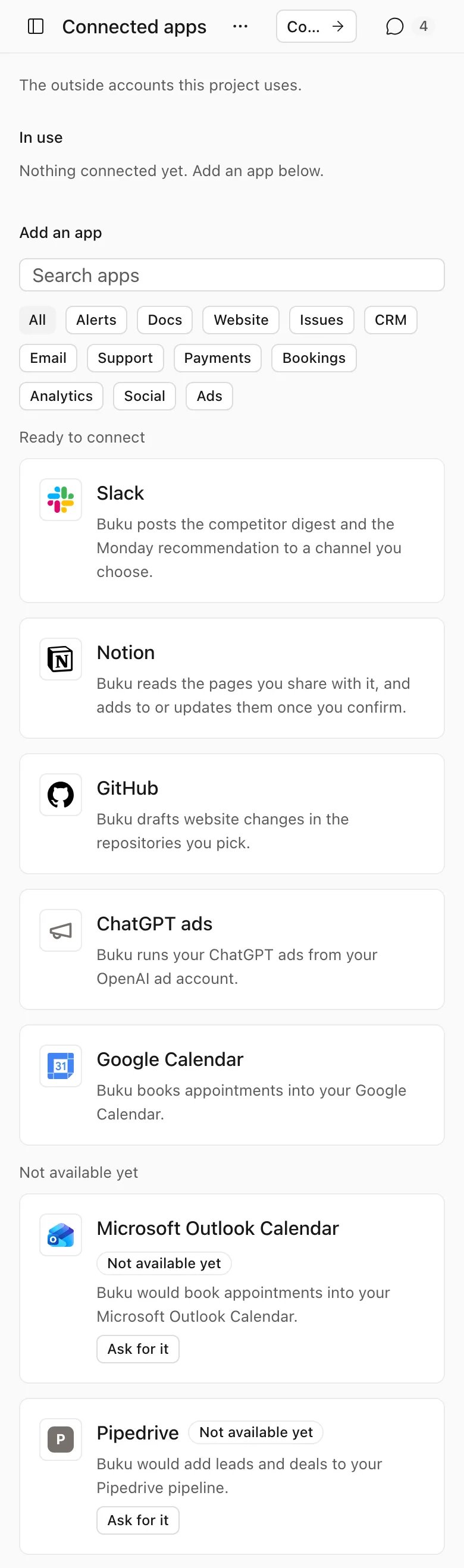
The page has two parts: In use, then Add an app.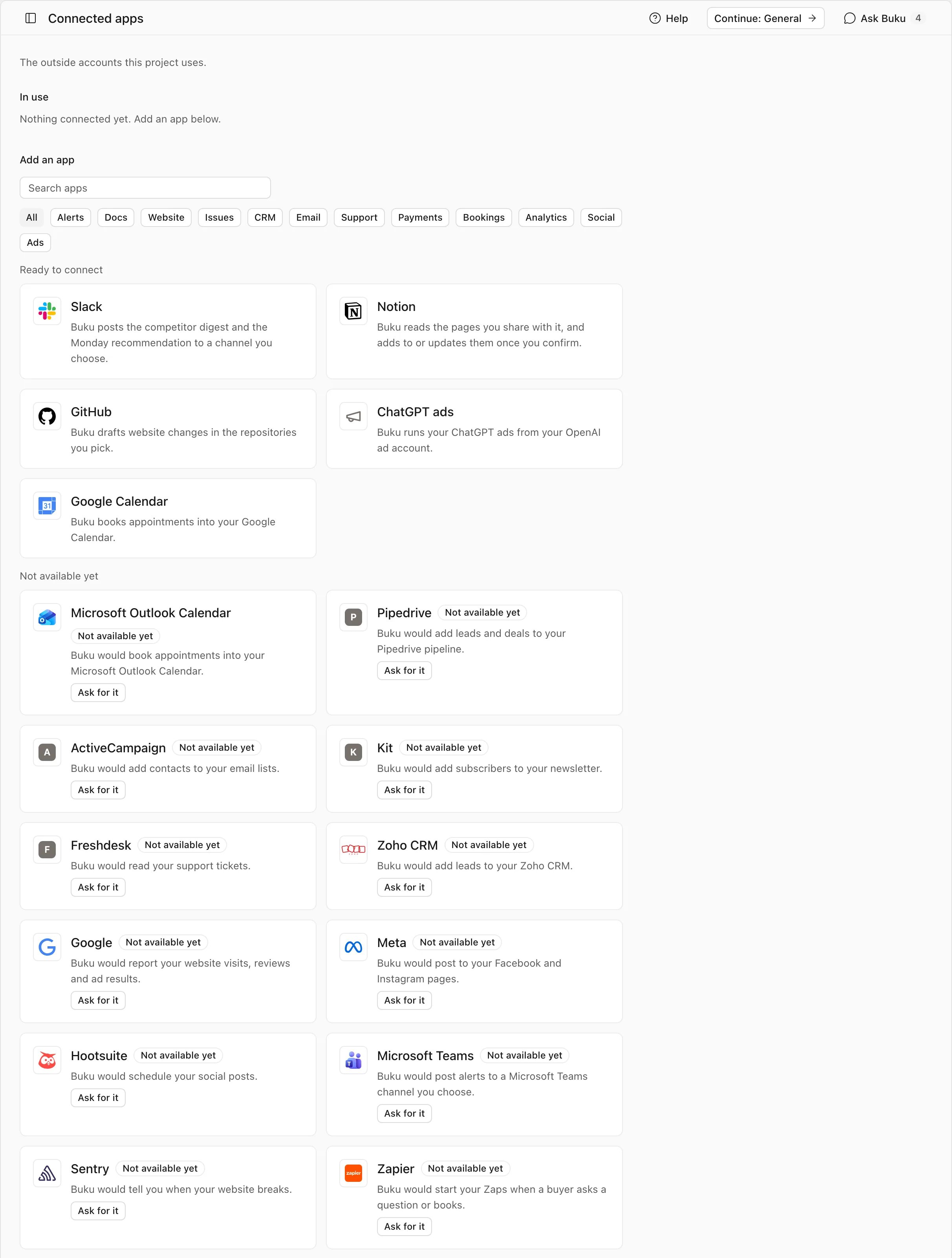
- A booking calendar: Change and Disconnect, and Reconnect when it needs you to sign in again. See Booking calendars.
- ChatGPT ads: Open Ad account opens its own page. See Ad account.
- Slack, Notion, GitHub, Google, Wix, Webflow, WordPress.com or WordPress (self-hosted): Remove, and Reconnect when it needs attention. Slack also says where its alerts go: Alerts: off, Alerts: #marketing-alerts, or Alerts: pick a channel again. Admins get Alerts to choose the channel. See Send alerts to Slack. GitHub says which repository holds your website: Website: pick a repository, Website: willow-lane/site, or Website: pick a repository again. Admins get Website to pick it; everyone else reads Website: no repository picked yet or Website: the repository can’t be reached instead. See Pick your website’s repository. Google says which properties Buku reads: Search Console: willowlane.nl · Analytics: Willow Lane (GA4), Search Console: pick a property, or Search Console: pick again. Admins get Properties to pick them; everyone else reads Search Console: not picked yet or Search Console: can’t be reached instead. See Pick your Google properties.
- Slack: Buku posts the competitor digest and the Monday recommendation to a channel you choose.
- Notion: Buku reads the pages you share with it, and adds to, updates or restores them once you confirm.
- GitHub: Buku drafts website changes in the repository you pick.
- Google: Buku reads your Search Console and Analytics numbers to tell you whether its fixes worked.
- ChatGPT ads: Buku runs your ChatGPT ads from your OpenAI ad account. Only a project Admin sees it, and only when ChatGPT ads are available to your business.
- Google Calendar: Buku books appointments into your Google Calendar.
- Microsoft Outlook Calendar: Buku books appointments into your Microsoft Outlook Calendar. Until Outlook is set up for Aibuku, it is under Not available yet instead, tagged Not available yet, with Ask for it.
- Wix, Webflow and WordPress.com: Buku reads your pages to suggest fixes.
- WordPress (self-hosted): your own WordPress site, the kind you or your host installed. Buku reads your pages and publishes word changes an Owner or Admin approves.
- Slack, Notion, GitHub, Google, Wix, Webflow, WordPress.com or WordPress (self-hosted) opens a panel at the side to connect it, as below.
- ChatGPT ads opens the Ad account page, where you connect it.
- Google Calendar or Microsoft Outlook Calendar opens the calendar panel at the side. See Booking calendars.
- An app the project already has is tagged In use. Choosing it takes you to its row under In use. A calendar opens its panel again for an Admin, so another booking app can use it too.
Who can connect
Only a project’s Admins can connect, reconnect, change, disconnect and remove apps and calendars. Everyone else who can open the page sees the same page without those buttons, and the line Only Admins can connect or remove this project’s apps. An app tagged In use still takes them to its row, and they can ask for an app like anyone else. A test account can’t connect anything; the page says A test account can’t connect outside apps. It can’t ask for an app either.Ask for an app
Tell us which apps you want Buku to work in next. Anyone who can open the page can ask, Admin or not.- For an app under Not available yet, choose Ask for it on it. It then reads You asked for this.
- For an app that isn’t listed, search for it. When nothing matches, choose Ask for and the name you typed, for example Ask for Trello.
- Or, at the foot of Add an app, next to Can’t find your app?, choose Ask for it, type the app’s name, and choose Ask for it again.
Booking calendars
A calendar belongs to a booking app: each app that takes bookings has one main calendar, and its bookings go into the main calendar of the account that signed in. Only a project’s Admins can connect, change or disconnect one. Each booking app with a calendar has a row under In use: Google Calendar or Microsoft Outlook Calendar, then whose bookings and the account they go to, for example Bookings for Acme · Signed in as sam@acme.com. Only Admins see the account. A calendar connected before this shows no account until it is next signed in. Its state reads Connected, Sign in again: Google no longer lets Buku in, Not signed in yet: bookings can’t use this calendar or Couldn’t check this calendar. When some bookings go into another calendar, one line under the row says so, for example Colour uses its own Google Calendar; bookings with Anna use Anna’s Microsoft Outlook Calendar, and 2 more, with a link to Booking rules, where a service’s own calendar and each team member’s calendar are connected. The line names up to two and counts the rest.Connect or change a calendar
- Under Add an app, choose Google Calendar or Microsoft Outlook Calendar. Or choose Change on a calendar’s row: the panel opens with that app picked.
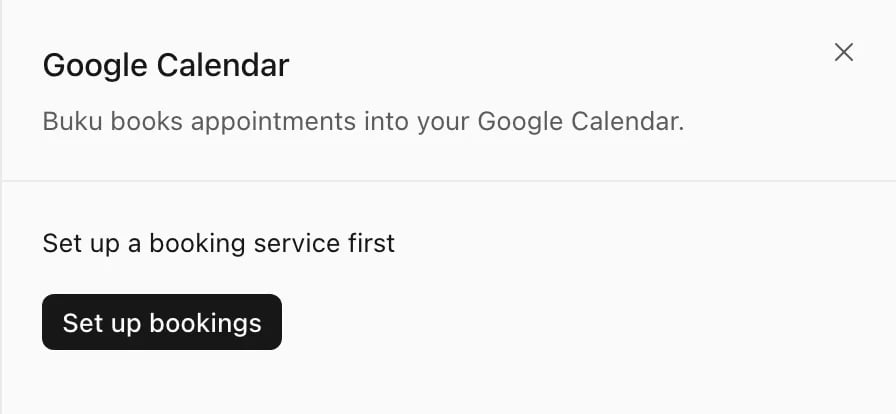
- The panel says which booking app the calendar is for. With one booking app, it is picked for you. With several, pick one: each says what it uses now, such as uses Microsoft Outlook Calendar or no calendar. With none yet, the panel says Set up a booking service first, and Set up bookings takes you to the Studio.
- Choose Connect Google Calendar or Connect Outlook Calendar. For an app that uses the other calendar, the button reads Switch to Google Calendar or Switch to Outlook Calendar. For an app already on this calendar, Use another Google account or Use another Microsoft account signs in a different account, and the panel also offers Switch to the other calendar.
- The panel says what happens next before you press: Google or Microsoft asks you to sign in, and bookings go into that account’s main calendar. When you connect or switch, it adds that customers can’t pick a time for that app until you finish signing in. On a switch, the line sits under the Switch to button, and the button goes straight to the sign-in. When you switch an app that has services or team members with their own calendar, they may have to connect theirs again in Booking rules.
- Sign in. You come back to Connected apps and the panel reopens with the outcome: Connected as and the account, then Done.
Disconnect a calendar
Choose Disconnect on its row. The window asks, for example, Disconnect Google Calendar?, and says what bookings do without it: Bookings for Acme will use your opening hours only. when your business books from its opening hours without a calendar, otherwise Customers can’t pick a time for Acme until you connect a calendar again. If services or team members have their own calendar, it adds that they may have to connect theirs again in Booking rules. Choose Disconnect to confirm, or Cancel to keep it. Disconnecting, or switching an app to the other calendar, also deletes Aibuku’s copy of the old sign-in. For Google, it takes Aibuku’s access back in that Google account too, unless another calendar in Aibuku may still be signed in with the same account. Microsoft has no way to take back one sign-in, so Aibuku still shows in that Microsoft account’s app permissions until you remove it there, but Aibuku can no longer use it. You can also connect your own calendar from a service’s Booking rules in the Studio, with Connect Google or Connect Outlook Calendar (and Reconnect Google or Reconnect Outlook Calendar once it is connected). Both places change the same calendar.Before you connect
The panel for Slack, Notion, GitHub, Google, Wix, Webflow, WordPress.com or WordPress (self-hosted) shows two short lists just above its buttons, so you know what happens before you connect:- What Buku does: what Buku reads in the app, what it may change, and when, for example only after you confirm, or only after an Owner or Admin approves. For every app but Slack, it also says that Buku sends what it reads to the AI model that runs it.
- What Aibuku keeps: the app’s sign-in, sealed in our credentials vault, and a record of who connected it and when; a record of each action Buku takes in it, which never holds the words read or written; and that the sign-in and the connection’s record are deleted when you remove the app. For GitHub and WordPress (self-hosted) it adds drafts of changes, kept while the app stays connected. For WordPress (self-hosted) it also says that removing the app doesn’t revoke the application password, and where to revoke it in WordPress.
Connect Slack or GitHub
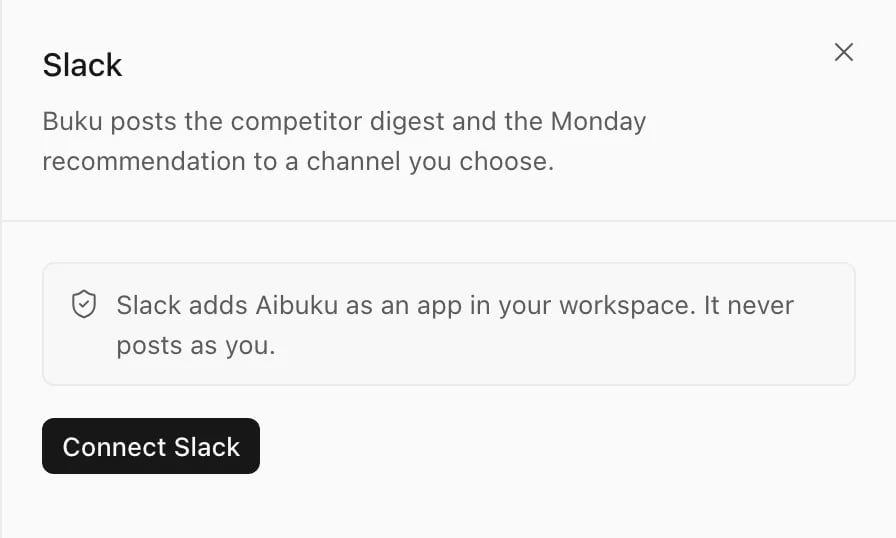
Slack and GitHub add Aibuku as an app. It works as Aibuku, never as you, so it keeps working when the person who connected it leaves the project.- Under Add an app, choose Slack or GitHub. A panel opens at the side and says what Buku will do there.
- Choose Connect Slack or Connect GitHub. The page moves on to Slack or GitHub.
- Approve Aibuku there. On GitHub, if it asks which repositories, choose Only select repositories and pick only the ones Buku may use: GitHub starts on All repositories.
- You come back to Connected apps and the panel says Connected.
GitHub asks a little more
Before you choose Connect GitHub, check which account GitHub is signed in as. It must be an owner of the account your repositories are on: your own account, or an organization you’re an owner of. If GitHub is signed in as someone else, sign out of GitHub first. The GitHub panel lists these steps before you leave. If GitHub can’t add Aibuku to the account you want, it may keep you on GitHub; come back to Connected apps and start again once GitHub is signed in as an owner.- Choose the repositories — you gave Aibuku All repositories on a GitHub account that has more than one. That is refused, so Buku never reaches a repository you did not mean to give it. Choose Open GitHub settings (it opens in a new tab), change Aibuku’s access to only the repositories Buku may use, then choose Try again.
- GitHub didn’t confirm you as an owner — GitHub was signed in as someone who isn’t an owner of the account you picked. Sign in to GitHub as an owner of that account, then choose Try again.
- Waiting for approval — an owner of that GitHub account has to approve Aibuku first. When they have, choose GitHub under Add an app again.
- Which GitHub account should Buku use? — you can reach more than one. Pick one and choose Use it.
Pick your website’s repository
Once GitHub is connected, an Admin picks the one GitHub repository that holds your website. Buku only ever proposes changes in that repository, never in another one. Only a project’s Admins can pick it, and a test account can’t.- Under In use, on the GitHub row, choose Website. The Website repository panel opens at the side.
- Under Repository, pick the repository that holds your website. The list shows the repositories Aibuku can reach; when there is only one, it is already picked. Don’t see yours? In GitHub, give Aibuku access to that repository, then choose Refresh.
- Choose Save.
Connect Google
Google lets Buku read your own Search Console and Google Analytics numbers, so it can tell you whether its fixes worked. Your website check reads your Search Console too, for three of its checks: see To do. Buku only reads them: it never changes anything in Google. Only a project’s Admins connect, change or remove it, and a test account can’t. Where To do, Search presence’s Your clicks and views on Google, or Explore’s Google · your own and Visitors · your own would send you here to connect, pick or reconnect Google, everyone but Admins reads Ask an Admin of this project to… instead of a link, as Buku says in the chat. Google belongs to the project, not to the person who connects it, so it keeps working when that person leaves the project. Anyone in the project can then ask Buku about the numbers: see Ask Buku about your Google numbers. A finished task on To do also shows what changed in those numbers for its pages: see To do. Search presence’s Google tab shows your own Search Console numbers too, under Your clicks and views on Google: see Search presence. The Monday email, Slack’s Monday recommendation and Last week on your dashboard also say how your own Google numbers changed: see The Monday email.- Under Add an app, choose Google. A panel opens at the side and says what Buku will do with it.
- Choose Connect Google. Google asks which Google account to use: choose the one that can open your website in Search Console and Google Analytics.
- When Google asks what to share, leave both Search Console and Analytics ticked.
- You come back to Connected apps, and the Google properties panel opens.
Pick your Google properties
The Google properties panel asks which Search Console property and which Google Analytics property are your website’s. Buku reads its numbers from these two only. Only a project’s Admins can pick them, and a test account can’t.- Under In use, on the Google row, choose Properties. The panel also opens by itself right after you connect Google.
- Under Search Console property and Analytics property, pick your website’s. The lists show what the Google account you signed in with can open. The property that matches your website’s address is already picked when Aibuku finds one.
- Choose Save. The panel says Saved.
Send alerts to Slack
Once Slack is connected, an Admin picks the one Slack channel Buku posts its alerts to. Buku posts from a fixed Aibuku template; no model writes these messages. Only a project’s Admins can change this, and a test account can’t.- Under In use, on the Slack row, choose Alerts. The Slack alerts panel opens at the side.
- Under Channel, pick the channel. The list shows the channels Aibuku is in, private ones included. Don’t see yours? In Slack, type
/invite @Aibukuin that channel, then choose Refresh. - Under Post, tick what Buku posts there:
- Monday recommendation: every Monday from 08:00 in your own time zone, how last week went and this week’s first step from your Growth plan, with its date and a button that opens it. It says the same as the Monday email, at the same time, and it comes whether or not anyone gets that email. With Google connected, it has the email’s lines about your own Google numbers and your settled fix results too. A week with no first step, no number that moved or held, and no settled Google result posts nothing.
- Competitor digest: each weekly or monthly competitor summary when it is ready. Only summaries that ended after you tick it are posted. If posting was stopped (a lost channel, or Slack needed reconnecting), only the latest summary is posted when it starts again.
- Choose Save. Aibuku checks with Slack that it is still in the channel; if it isn’t, the panel says, for example, Aibuku isn’t in #marketing-alerts. In Slack, type /invite @Aibuku in it, then try again. and nothing is saved.
- Monday recommendation needs the Growth plan and a customer group on it. It says Add a customer group on your Growth plan first, and Open Growth plan takes you there; or Growth plan isn’t on for this project yet.
- Competitor digest needs Competitor watch’s summaries: it says Choose competitors in Competitor watch first, and Open Competitor watch takes you there.
When Aibuku can’t post
- The channel was archived or deleted, or Aibuku was removed from it: the alert isn’t posted, and a test message to it says, for example, Aibuku isn’t in #marketing-alerts. In Slack, type /invite @Aibuku in it, then try again. When it is the saved channel, the Slack row says Alerts: pick a channel again and the panel says, for example, Aibuku can’t post to #marketing-alerts any more. Pick a channel, or invite @Aibuku again. Pick a channel and choose Save, or invite @Aibuku back and send a test message to it: once one arrives, the channel is no longer marked.
- Aibuku was removed from your Slack workspace: the panel says Slack no longer lets Buku in. Reconnect Slack to keep it working. Slack needs attention (see When an app needs attention) and alerts stop until it is reconnected.
- The panel says Couldn’t load your Slack channels. or Couldn’t load your Slack alerts.: choose Try again.
Connect Notion
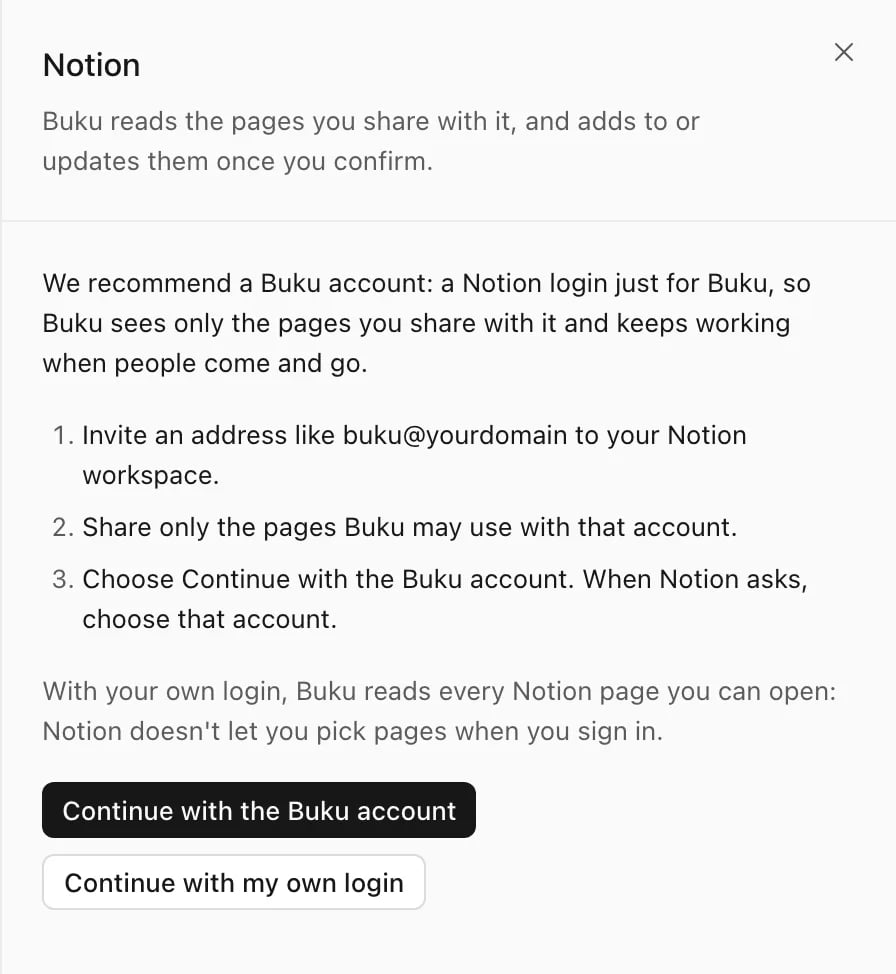
Under Add an app, choose Notion. Notion works as whoever signs in, so the panel asks which login Buku should use. We recommend a Buku account: a Notion login just for Buku, so Buku sees only the pages you share with it and keeps working when people come and go. The panel shows the steps:- Invite an address like buku@yourdomain to your Notion workspace.
- Share only the pages Buku may use with that account.
- Choose Continue with the Buku account. When Notion asks, choose that account.
Connect Wix, Webflow or WordPress.com
Under Add an app, choose Wix, Webflow or WordPress.com. Each works as whoever signs in, so the panel asks which login Buku should use, as Notion’s does. We recommend a Buku account: a login just for Buku, added to your site, so it keeps working when people come and go. For Wix, the panel shows the steps:- Invite an address like buku@yourdomain to your Wix site as a collaborator.
- Accept the invitation from that address.
- Choose Continue with the Buku account. When Wix asks, sign in as that account.
Connect your WordPress site
Choose WordPress (self-hosted) under Add an app for a WordPress site you or your host installed. (A site on wordpress.com is WordPress.com, above.) Buku signs in to your site as a WordPress user made just for Buku, with an application password: a password WordPress makes for one app, which you can revoke at any time. The panel shows the two steps in WordPress:- In WordPress, add a user for Buku under Users › Add New User, with the Editor role. Editor can change published pages; Administrator is more than Buku needs.
- Sign in to WordPress as that user, open Users › Profile, and under Application Passwords add one named Aibuku. Copy the password WordPress shows: it shows it only once.
- Site address: the address you see in your browser, like example.com. A site in a folder, like example.com/blog, works too.
- WordPress username: the user you made for Buku.
- Application password: the one you copied, not your own WordPress password. Aibuku keeps it locked away and never shows it again.
- That doesn’t look like a website address. Use the address you see in your browser, like example.com.
- Your site needs to use https. Ask your host to turn it on, then try again.
- That address isn’t reachable from the internet. Use your site’s public address.
- Your site didn’t answer, or a firewall turned Aibuku away. Check the address and try again in a moment.
- Your site answers at a different address. Use the address you see in your browser’s address bar.
- That site doesn’t look like WordPress, or a plugin hides the part of WordPress Buku reads.
- Application passwords are turned off on this site. Your host or a security plugin may block them. WordPress offers application passwords only over https, and some security plugins switch them off.
- WordPress didn’t accept that username and application password. Check both and try again.
- That application password belongs to a different WordPress user. Use the username it was made for.
- That user can’t edit published pages. Give it the Editor role in WordPress, then try again.
What Buku does in Wix, Webflow, WordPress.com and WordPress
Buku only reads Wix, Webflow and WordPress.com for now: it finds your pages and reads their text to suggest fixes. Aibuku checks every request before it reaches the app and lets only reads through, so nothing on your site changes. Ask Buku to change something there and it says, for example, I can only read your Wix pages for now. You can make that change in Wix itself. On your own WordPress site, Buku finds a page by its address and reads its title, headings and text. It reads only published pages that anyone can visit, never a draft, a private page or a page behind a password, and it reads them only on the site you connected. Buku can also change words there once an Owner or Admin publishes the change: see Publish a change to your WordPress site.What Buku does in Notion
Once Notion is connected, ask Buku about your Notion pages in the chat, for example What’s on my spring menu page? Buku searches the pages you shared with its Notion login, reads them and their comments, and answers from them. It treats what a page says as information, never as orders: a page that tells Buku to do something is ignored. Buku can also add a page, or a comment on a page, when you ask it to. It never adds anything on its own: it first shows a card in the chat, for example Add a page in Notion, with the new page’s title and first lines. Choose Save in Notion to add it, or Don’t save. Once it’s added, the card says Saved, and Open in Notion opens the page. If Notion doesn’t say where it put it, the card says only Saved. The card works for 30 minutes and only for the person who asked; after that it says This card has expired. Ask Buku again. Only a project’s Admins and Developers can save one. If Notion doesn’t answer after Buku sent it, Buku says This may have been saved. Check it in Notion. and doesn’t try again, so nothing is added twice. A page too long for the chat can’t be confirmed there: Buku says to add it in Notion itself. The app room shows no such card, so there Buku says You can do it in Notion for now.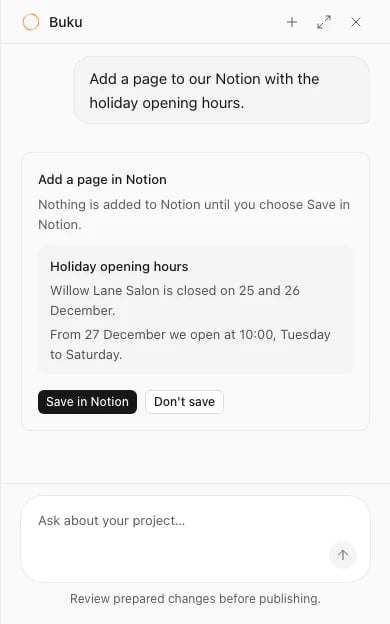
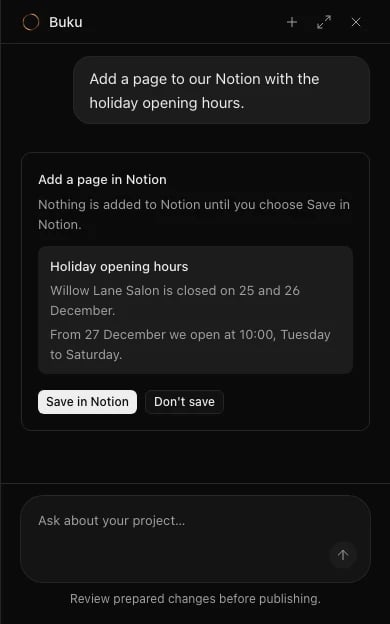
A card for a new page, shown with example data.
- for a change, Now shows the words on the page now and After what Buku will write in their place. After shows only the words Buku writes, not the whole page;
- for text added to a page, the card says where it goes, Adds to the end of the page or Adds to the start of the page, and After shows the text Buku adds. Nothing already on the page changes;
- for a move, the card shows the page and where it Moves to;
- for a delete, the card shows the page.
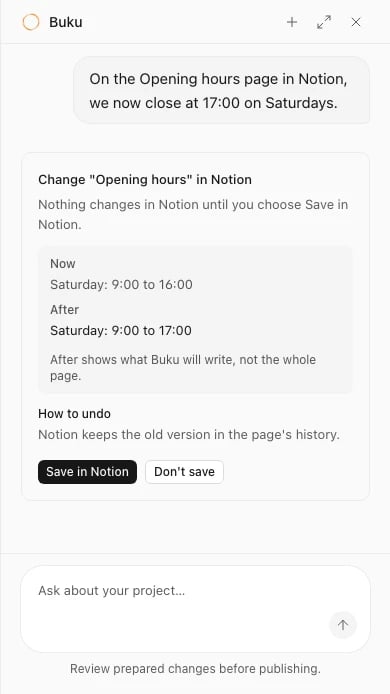
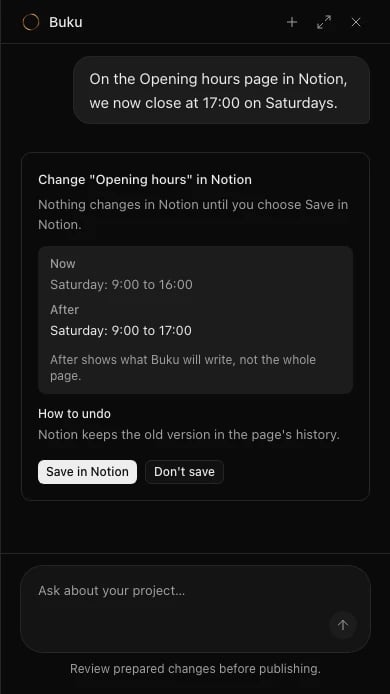
A card for a change, shown with example data.
- a page that isn’t in the Trash: Buku says That page isn’t in Notion’s Trash, so there’s nothing to restore.
- a page at the top level of your workspace, with no page above it: Notion doesn’t let Buku restore those, so Buku says Notion can’t restore a top-level page from Buku. Restore it from the Trash in Notion.
Buku working in Notion is being introduced gradually. If Buku doesn’t offer to read, add to, change or restore your Notion pages, it is not on for your project yet.
What Buku does in GitHub
Once GitHub is connected and an Admin has picked your website’s repository (see Pick your website’s repository), ask Buku in the chat to change some words on your website, for example On my pricing page, change “Fresh bread daily” to “Fresh bread every morning”. Buku knows the pages your latest website check read, so you can name one in your own words, or give its address, such as willow-lane.nl/pricing. For a page it doesn’t know, Buku asks for the page’s full address. Only a project’s Admins and Developers can ask. Buku checks the words are on that page as visitors see it now, finds them in your website’s files, and opens one change in GitHub with only those words changed. In the chat it shows a card, Change on your website, with the page, Now (the sentence on your page today) and After (the same sentence with the new words). Nothing on your website changes until an Owner or Admin publishes it (see Publish, undo or discard a GitHub change) or someone approves it in GitHub. Open in GitHub opens the change there. If your website is on Vercel, Vercel builds a preview of the change. The card says Vercel is building a preview…, then shows Preview: it opens on Vercel, and you may need to sign in to Vercel to see it. If the preview didn’t build, the card says so. If no preview has come after 10 minutes (for example because your website isn’t on Vercel), it says No preview yet. Open in GitHub to see how it’s going. The same line shows when Vercel skips building a preview for the change, or when a preview is still building 30 minutes after the change was made. When someone approves the change in GitHub, the card says Approved in GitHub. and checks your live page, as after Publish. If the change is closed in GitHub instead, it says Closed in GitHub. Nothing changed on your website. If GitHub was slow to answer, the card says Opening the change in GitHub… while Aibuku checks. After 2 minutes it shows the change, or says This change wasn’t opened in GitHub. Nothing changed on your website. If Aibuku still can’t tell, it says I couldn’t confirm the change was opened. Open GitHub to check. If Aibuku can no longer reach your website’s repository, the change may still be waiting in GitHub, so the card says Aibuku can no longer reach your website’s files. Check this change in GitHub; nothing changed on your website through Aibuku. and keeps Open in GitHub. To let Aibuku reach it again, see Pick your website’s repository. Buku changes words only, one change at a time:- It changes the text on your pages, image descriptions, and your pages’ description for search and social sites. It doesn’t change layout, colours, images or code; for those it says I can only change words on your website, not its layout, colours or code. A web developer can make that change in GitHub.
- The words must appear exactly once in your website’s files. If they appear in more than one place, Buku won’t guess which one to change. If they aren’t in the files, for example because they come from a content system, Buku says so.
- At most 3 changes wait at once. Finish or close one in GitHub before asking for another.
- Buku only changes pages on your own website.
Buku changing your website’s words is being introduced gradually. If Buku doesn’t offer it, it is not on for your project yet.
Publish, undo or discard a GitHub change
Owners and Admins publish, undo or discard a change from its card. A Developer sees the same card with Open in GitHub and An Owner or Admin publishes this change. On a waiting change, the card shows Publish, Discard and Open in GitHub, and Nothing on your website changes until you publish. Each button acts in one click, with no second question. Publish puts the change live. Aibuku first checks the words Buku changed are still in your website’s files as they were. If someone changed that part of the page since, the card says This page changed since Buku drafted it. Ask Buku again. and nothing is published. If your repository asks for a review or checks before anything is merged, the card says This repository needs a review or checks before merging. Finish it in GitHub. with Open in GitHub. If someone edited the change in GitHub after Buku made it, the card says This change was edited in GitHub after Buku drafted it. Finish it in GitHub. Once published, the card says Published. Checking your live page… while Aibuku reads your page as visitors see it, then Live on your website. If your page doesn’t show the new words within 10 minutes, it says Published, but your live page doesn’t show it yet. It may still be deploying. Check again reads your page once more. A change approved in GitHub instead says Approved in GitHub. and is checked the same way. Undo puts the old words back. An Owner or Admin sees it on a published change: one that is live on your website, one that isn’t on your live page yet, or one someone approved in GitHub. It doesn’t show while the card is still checking your live page. One click and Aibuku opens a change that restores the old words and merges it at once; the card says Undone. and checks your live page again. When the old words are back it says Your live page shows the old words again. If they don’t show within 10 minutes, it says Your live page doesn’t show the old words yet. It may still be deploying. with Check again. If your repository needs a review or checks before the undo can be merged, the card says This repository needs a review or checks before merging. Finish it in GitHub., and Open in GitHub opens the undo there; the card offers no second Undo. If GitHub doesn’t answer while the undo is being merged, the card says GitHub didn’t answer. Try again in a moment. and keeps Undo: the next click finishes the same undo, never a second one. Undo works while the new words are still on your page in one place. If the page has changed since, or the words appear in more than one place, the card says This change can’t be undone here any more. Undo it in GitHub. with Open in GitHub. Discard closes a change you don’t want. Nothing reaches your website, the card says Discarded., and its place is free for another change. If a card has been open for a long time, a button may answer This card is out of date. Reload to see the latest. If GitHub is slow, it says GitHub didn’t answer. Try again in a moment.Publish a change to your WordPress site
Once your own WordPress site is connected (see Connect your WordPress site) and it is the app that publishes your website changes (see Pick which app publishes your website), ask Buku in the chat to change some words on one of its pages, for example On my About page, change “Do you deliver?” to “Do you deliver to my door?” As with GitHub, you can name the page in your own words or give its address. Only a project’s Admins and Developers can ask. Buku checks the words are on that page as visitors see it now, finds the page in WordPress, and prepares one change with only those words changed. Preparing it only reads your site: nothing changes in WordPress or on your website until an Owner or Admin publishes it. Buku says I’ve prepared that change. Check it below; nothing changes on your website until it’s published. and shows the change on a card. This works for a WordPress site you or your host installed. A site on wordpress.com can’t take changes from Buku yet: Buku reads it, and says I can’t change words on your website through WordPress.com yet.What Buku changes, and what it doesn’t
Buku changes one line of words at a time, on a page or post that is already on your site:- It changes a page’s or a post’s title, or words in its text, such as a heading, a sentence or an FAQ answer.
- It doesn’t change layout, colours, images or code. For those it says I can only change words on your website, not its layout, colours or code. You can make that change in WordPress.
- It doesn’t add pages. It doesn’t change your page’s description for search and social sites either, which an SEO plugin such as Yoast or Rank Math keeps outside the page itself.
- The words must appear exactly once in the page in WordPress, title included. If they appear more than once, Buku says Those words appear more than once on this page in WordPress, so I won’t guess which one to change.
- Words that are part of the page’s layout or formatting, such as an image’s description, a button made with a shortcode, or words with only part of them in bold, can’t be changed here. Buku says Those words are part of the page’s layout or formatting, so I can’t change them here. You can change them in WordPress.
- A page made with a page builder such as Elementor or Divi keeps its words outside the page itself, so Buku can’t change it yet. It says I can’t edit this page yet: its words aren’t kept in the page itself, which happens with page builders such as Elementor or Divi. You can change them in WordPress.
- Words that show on the page but aren’t part of it, such as your menu, footer or a widget, come from your theme. Buku says I can’t find those words in this page in WordPress. They may come from your theme, a menu or a widget. You can change them in WordPress.
- If your front page shows your latest posts, it has no words of its own to change. Buku says Your front page shows your latest posts, so it has no words of its own for me to change. Ask me about one of your pages or posts.
- Buku changes only published pages that anyone can visit, never a draft, a private page or a page behind a password.
- Buku changes pages only on the WordPress site you connected, and only when that site is your project’s website. If they differ, it says so, for example Your WordPress site at shop.willow-lane.nl isn’t this project’s website, willow-lane.nl. An Admin can connect the right site on Connected apps.
- At most 3 changes wait at once, counting GitHub’s and WordPress’s together. Past that, Buku says There are already 3 website changes waiting. Finish one of them first.
The card
The card, Change on your website, names the page (for example /about/ on willow-lane.nl) and shows Now (the sentence on your page today) and After (the same sentence with the new words). WordPress builds no preview, so the card shows none. An Owner or Admin sees Nothing on your website changes until you publish. with Publish, Discard and Open in WordPress. A Developer sees the same card with An Owner or Admin publishes this change. and only Open in WordPress. Open in WordPress opens the page in WordPress’s editor. Each button acts in one click, with no second question.Publish
Publish changes those words on your page in WordPress, and nothing else on it. Aibuku first reads the page in WordPress again. If someone saved the page in WordPress since Buku prepared the change, the words aren’t there exactly once any more, or the page is no longer published for everyone, the card says This page changed since Buku drafted it. Ask Buku again., offers Discard, and nothing changes. Once published, the card says Published on your WordPress site. Checking your live page… while Aibuku reads your page as visitors see it, then Live on your website. In WordPress, the page’s revisions show the change, made by the user you made for Buku. If your site uses a cache, the new words can take a few minutes to show. If your page doesn’t show them within 10 minutes, the card says Published on your WordPress site, but your live page doesn’t show it yet. If your site uses a cache, it can take a few minutes. Check again reads your page once more.Undo
Undo puts the old words back in that one place, and nothing else on the page changes. An Owner or Admin sees it on a published change once the card has finished checking your live page: when it says Live on your website., or that your live page doesn’t show it yet. One click, and the card says Undone. and Checking your live page…, then Your live page shows the old words again. If they don’t show within 10 minutes, it says Your live page doesn’t show the old words yet. If your site uses a cache, it can take a few minutes. with Check again. Undo works once, while Buku’s words are still on the page exactly once, in a place Buku can change. If someone changed them since, the card says This change can’t be undone here any more: the words on the page changed since. You can put the old words back in WordPress. with Open the earlier version. It opens the version WordPress kept from just before the change, where you can restore it. A page WordPress kept no earlier version of gets Open in WordPress instead. If someone already put the old words back in WordPress, Undo finds them there, changes nothing, and the card says Undone. To make the same change again after an undo, ask Buku again.Discard
Discard drops a change you don’t want. Nothing changes in WordPress, the card says Discarded., and its place is free for another change.If something stops it
- WordPress doesn’t let Aibuku’s user edit this page. You can change it in WordPress, or give that user access to the page. — WordPress itself kept that one page from the user you made for Buku, for example through its role or a plugin that restricts pages. The card keeps Open in WordPress.
- Your WordPress site didn’t answer. Try again in a moment. — your site was slow or didn’t answer. Aibuku never makes the same change twice: the next click first checks whether the last one went through.
- Aibuku can no longer reach your WordPress site. An Admin can reconnect it on Connected apps. — WordPress no longer accepts the application password, the site moved, or WordPress was reconnected since Buku prepared the change. When WordPress turned the password away, WordPress (self-hosted) needs attention on this page (see When an app needs attention). A change Buku prepared before WordPress was reconnected can’t be published: discard it and ask Buku again.
- This card is out of date. Reload to see the latest. — the card was open for a long time, or your role in the project changed since.
Buku changing your WordPress site’s words is being introduced gradually. If Buku doesn’t offer it, it is not on for your project yet.
Pick which app publishes your website
Buku changes words on your website through GitHub or WordPress (self-hosted), your own WordPress site. Wix, Webflow and WordPress.com connect so Buku can read your pages; Buku can’t change words through them yet. If they are your only website apps, Buku says so, for example I can’t change words on your website through WordPress.com yet. With one of GitHub and WordPress (self-hosted) connected, that one publishes your website changes, and nobody is asked to pick: its row says nothing about it. With both connected, an Admin picks which one does:- Until someone picks, each of the two rows says Website changes: pick which app publishes them, and Buku answers a change with Pick which app publishes your website changes on Connected apps first. Someone who isn’t an Admin reads Website changes: no app picked to publish them yet, and Buku asks them to ask an Admin.
- An Admin chooses Use for website changes on the app that should publish. Its row then says Publishes your website changes, and the other row offers Use for website changes to switch.
- A change Buku already prepared stays with the app it was prepared in.
When an app needs attention
A row that needs attention says why and offers Reconnect:- Slack no longer lets Buku in. Reconnect to keep it working. — the access was taken away in that app.
- Sam, who connected it, has left the project. Reconnect it with a Buku account. — Notion, Wix, Webflow or WordPress.com, when it was connected with someone’s own login.
- Buku can no longer sign in to your WordPress site. Its address, the application password or the user’s role may have changed. Reconnect to keep it working. — your own WordPress site, when the password was revoked, the user lost its Editor role, or the site moved or stopped answering as WordPress. Reconnect asks for the three fields again.
Remove an app
Choose Remove. The window asks, for example, Remove Slack?: Buku stops using it for this project, and the app is told to forget Aibuku’s access. Choose Remove to confirm, or Cancel to keep it. While the app is told, which can take a few seconds, the window says, for example, Removing Slack…. You can connect it again later. Removing GitHub also forgets the repository you picked for your website. After you connect GitHub again, pick it again with Website. It also forgets the website changes Buku opened; they stay in GitHub. Removing Google forgets the properties you picked. The window, Remove Google?, says: Buku stops using Google for this project, and Aibuku forgets its access. Google is told to forget it too, unless your bookings use Google Calendar with the same Google account. You can connect it again later. Google’s way of forgetting Aibuku ends every access the same Google account gives Aibuku, booking calendars included, so when a booking calendar (or Google in another project) may use the same account, Aibuku only forgets its own copy and those keep working. The page then says Google is removed from this project. Aibuku still shows in your Google account’s third-party access because your bookings may use Google Calendar with the same account. Removing it there would disconnect that calendar too. Removing WordPress (self-hosted) deletes the application password Aibuku kept. Only WordPress can revoke it, so the window, Remove WordPress (self-hosted)?, says so, and the page then says WordPress (self-hosted) is removed from this project. The application password still works in WordPress until you revoke it under Users › Profile › Application Passwords. Revoke it there too. Deleting a project removes all of its connected apps the same way, before anything else in the project is deleted.If it didn’t connect
When you come back, the panel says what happened. The app is connected only once it says Connected.- That link expired — a connection link lasts 30 minutes. Choose Try again to get a new one.
- The connection didn’t finish — the link was already used, or you weren’t signed in to Aibuku as the person who started it: you were signed out, or signed in as someone else. Sign in as yourself, then start again from this page with Try again.
- Already connected — someone connected this app while you were away. Remove it first to connect another account.
- Not in your plan — your workspace’s plan doesn’t include connected apps. See plans shows the plans that do.
- No room for another app — the project already has 10. Remove one to connect another.
- Couldn’t reach it just now — choose Try again in a moment.
- It didn’t connect — choose Try again.