

You need permission to edit the project to use its chat.
Choose what to check
Where evaluation setup opens with Buku, confirm your business details, then answer Buku’s question What should we check? under its message. With a website, choose Check this to check your website alone. To include an AI app you run, open I also run my own AI app and enter Your app address, or choose Paste what my app can do; My website only closes it again. Without a website, the box for your app shows straight away, and if you have no app either, choose Set up my business instead. There is nothing to tick: checking confirms you own it or have permission to use it. Buku explains the saved check while Search presence fills in beside the conversation. Missing facts stay as labelled spaces. After the explanation, choose Continue setup to finish setup in place, or Continue to plans when your plan comes next. Background checks can keep running while you carry on; the full check runs after payment setup. For an agency, or when your account does not qualify for the included check setup, Buku instead offers See your plan. Your saved answers stay in place, and the check setup form is skipped.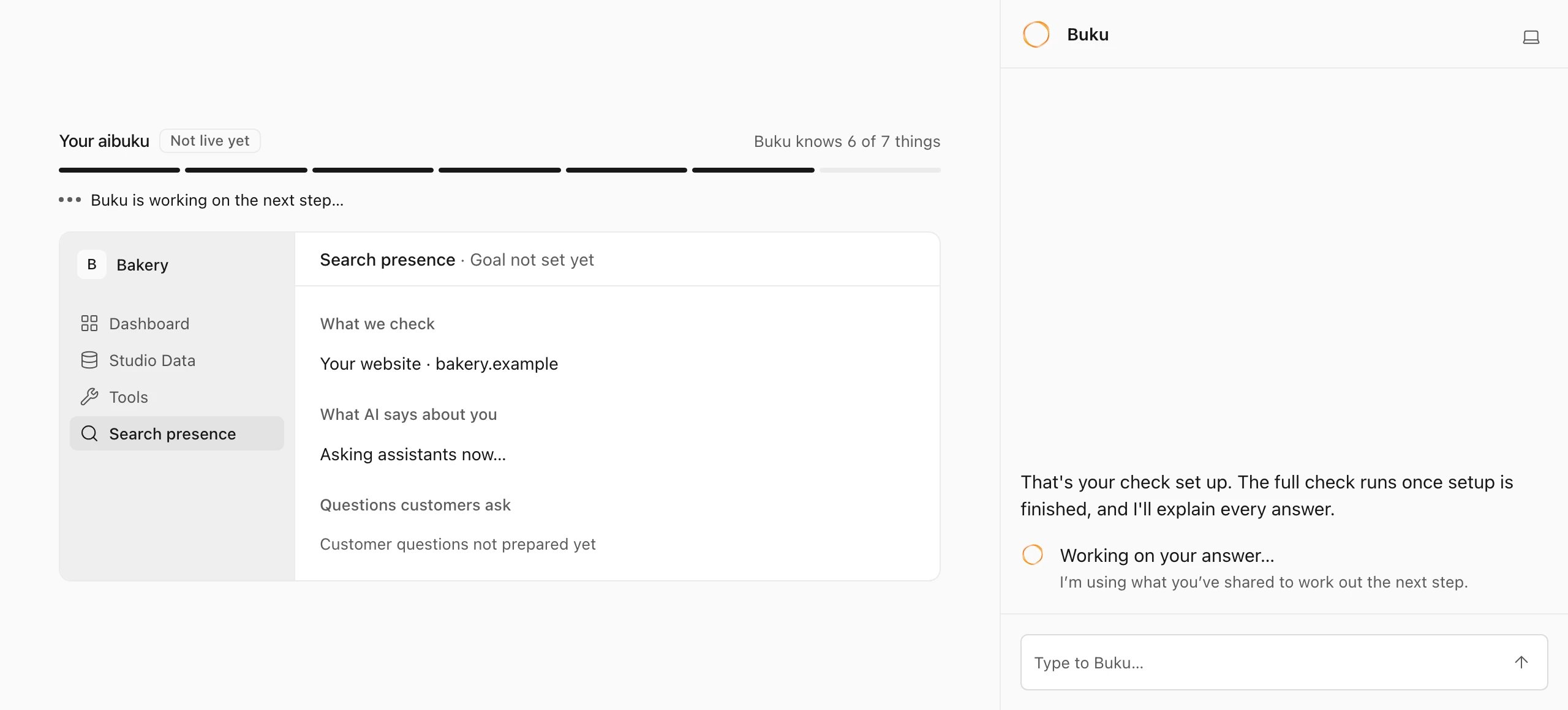
Open Buku
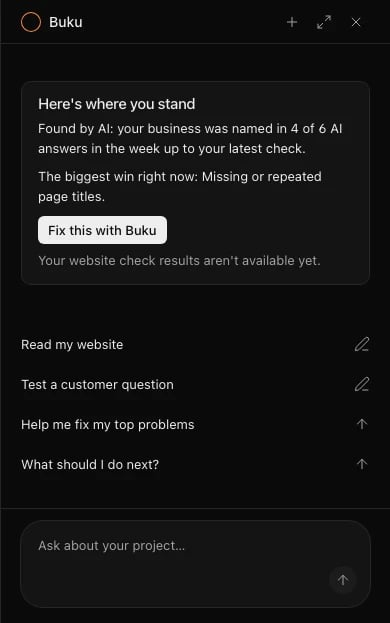
On your project’s Dashboard, the box under What would you like to do today? is your way to Buku. Write your message and send it, or choose one of the suggestions under the box: Buku opens on the whole screen with it sent. Closing Buku brings you back to the Dashboard with the box empty. On your project’s other pages, choose Ask Buku in the header. A number beside it means there are recent updates you have not opened. Opening Buku shows those updates and clears your number. If your plan compares periods, a week in which one of your numbers went up or went down is one update, worded as on the Dashboard’s News, for example Last week: Google searches went up; choose it to open the Dashboard. An estimate, such as Google visits a month, never counts. With Show me the guide off there is no number. On a phone, Ask Buku shows only its speech-bubble icon, as Help shows only its question mark, so the page’s name keeps its room. Opening Buku puts your cursor in its message box, and the next Tab after Ask Buku goes into Buku. Beside a page, press Escape in the message box to close Buku; what you typed stays for next time, and your cursor goes back to Ask Buku. On a phone, Buku covers the whole screen; the cross at its top takes you back to the page. A new conversation, or Buku’s greeting, lists questions you can choose. First come the ones that fit the page you are on: choosing one puts it in the message box, so you can add to it. Then come Buku’s own questions, each with an arrow, which send at once: Help me fix my top problems to work through open problems one at a time, What should I do next? for your checklist, What’s new? for updates, What do you know about me? for your learning choice and notes, and How it works for an explanation. At most four suggestions show at a time, so the page’s own come first and Buku’s fill the rest in that order. When the greeting already shows your updates, it leaves out What’s new?. You can also type your own question. Your conversation with Buku always stays open. Your messages, the questions Buku asks you, and your updates are in the conversation: Buku’s greeting shows your updates right there, under Here’s what happened since you were last here. The greeting starts a new conversation. It never appears at the end of an older conversation you have open: then your updates wait, and the number beside Ask Buku stays until you see them. Choose New conversation and Buku greets you there with them. When a button on a page asks Buku for you, for example Write the missing answer, the message box shows what you asked for, such as Write a section answering: “Do you open on Sundays?”. In a new conversation, Buku starts from that request instead of its usual questions. Add details if you like, then send it. The conversation shows your request in those words. Buku is given more instructions to do it well; choose What Buku was asked under your message to read them. What Buku makes for you is kept in Files and updates. On a wide screen with Buku on the full page, it shows next to the conversation. When Buku is beside the page or on a phone, Files and updates opens inside Buku in place of the conversation; choose Buku at its top, or press Escape, to go back to your conversation where you left it. The list button at the top of Buku opens and closes it, and its number says how many new things are waiting. Opening it moves you into it, so Escape takes you straight back. Buku never opens it by itself, so you stay where you are reading. Files and updates is one list, in three parts:- Checklist and updates, at the top, is folded. Choose it to see your checklist, What’s new, your notes, Where you stand, your summaries and updates about your competitors; choose one to read it there, and choose it again to fold it away.
- Made for you: the drafts Buku wrote in this project, from every conversation. The newest shows as a small picture with its name, what it is and how many places you still need to fill in, such as Page · 2 places to fill in. Older drafts are one line each, with how many places are left, or when it was made once there are none. A draft from last week is still here. A draft shows its last finished version; one Buku is still writing, or stopped before finishing, says Writing… or Not finished instead.
- Used shows what Buku read in the conversation you are in, such as your website. Choose it to open the site. If Buku read nothing in this conversation, this part is not shown.
Ask Buku for a page
Ask Buku for a page, such as a landing page or a page for one offer, and it writes a whole web page for your business. On a wide screen with Buku on the full page, the page opens beside the conversation as soon as Buku starts it, and each part appears as Buku saves it, while you keep reading where you are. Where the page would cover the conversation, beside the page or on a phone, it does not open by itself: choose Open on its card when you are ready. Buku writes the page only from what you saved: your business details, what Buku read, and your app’s logo and colours from Brand & look. Without Brand & look, it uses the colour Buku found on your website, or a calm, plain look when there is none. Anything it does not know is marked for you to fill in, never made up. The page shows as your customers would see it, in its own colours, whether Aibuku is light or dark. Computer and Phone switch its width. Links on the page do nothing here, so you stay on your draft. Its name at the top offers Copy for your developer, Copy the words and Download the page: one file a developer can put online as it is. A page can be long, but not endless. If Buku reaches the limit, the page keeps what was saved and its foot says Cut short. To fill in a marked place, press it on the page. A small field opens beside it, named for what is missing. Type your answer and choose Save, or press Enter. Your answer goes into the page straight away as its next version, with no message to Buku, and the page, its card and places to fill in update. The page stays where you were reading. Cancel or Escape closes the field without saving. While Buku is still working in the conversation, a marked place tells you so instead: fill it in when Buku is done. If the page changed while you were typing, for example in another tab, the field stays open with your words and the newest version shows: check the place and save again. To ask Buku about one part of the page, such as the headline or a section, point at it: the part is outlined, and pressing it puts it in the message box, named by its own heading or first words. Then type what you want, such as make it shorter, and send. Buku changes that part only, and keeps the rest of the page and every answer you filled in. When a page has several parts that look alike, such as three car cards, Buku changes the one you pressed. The page stays where you were reading, and a changed part you could see stays in view. A message can point at up to three things; remove one to add another. You can also reach every marked place and part with Tab, and press Enter. Your app is built and changed in Studio, not in this panel. See Studio.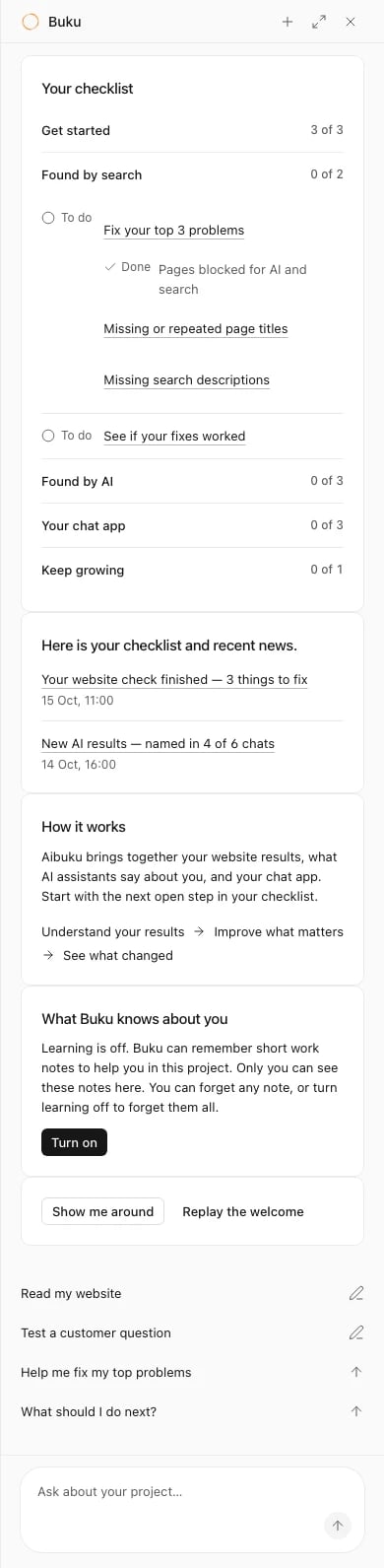
Buku's chat cards with example data.
Check your business details
When Buku says it has everything it needs for now, choose Continue setup. Setup keeps the business facts, goal, offerings and customer groups you already confirmed. Answer the remaining questions, such as what customers should be able to do and the look of your app, then choose a plan at the end. During first setup, Buku asks one question at a time beside the preview. Your answers stay in the conversation after you choose a suggestion or type a reply; completed questions become short step summaries. On a phone, choose Preview to see your business, then Back to Buku or Escape to return. Keyboard focus returns to Preview when you close it. When you reveal an edit field, focus moves into that field so you can type immediately. Suggested answers wait while Buku is working. If an answer fails, Try again repeats that same choice. Buku asks for the website once, with the website field and choices beside the conversation. If you signed up with a work email address and a website opens there, Buku first asks whether that address is your website, for example Is yourbakery.nl your website? It reads it only after you choose Yes, that’s my website; A different address opens an empty Website field. After you answer, a short line appears while Buku reads the next step or works on its reply. If it cannot read the next step, your answer stays saved and Try again reads it again. If no work starts, the line clears within five seconds. If an open page needs new files after an update, it reloads once to pick them up. When a read does not work, Buku says why. I couldn’t reach that website. or There’s too little text on that website for me to read. means the problem is with the site: choose Add the details myself to type your business details on a card, or Try another address to reveal and focus Website. The same address cannot start another read after that. Something went wrong on our side, not with the website. means the problem was ours, for example when a read takes too long. Buku then offers Try again first, which reads the same address again and does not count toward your two website reads, along with the same two choices, including after a reload. Choosing to type your details closes the website question for this setup; Buku carries on with the business details card without asking for the website again. The step says Continuing without the website after your answer. No website for now is used only when you said you do not have one. Buku explains the read outcome before asking what to do next. After two unusable reads, Buku asks whether you would like to add the details yourself. Choose Add the details myself to open the business details card, or I don’t have a website to continue without one. The website box and retry choices disappear, including after a reload. If you reach today’s reading limit, you can still continue by typing your details on the card. When Buku asks you to pick a plan, your conversation stays visible. Choose See your plan to carry on. Once you are on a project page, New conversation starts a fresh chat. During setup, Buku can offer a card of business details. The card shows only details read from your website or answers you already saved; Buku never copies your chat messages into it. Type anything missing on the card, check the details, then choose Looks good to save. If you read another website, Buku offers a fresh card. An older card cannot save the previous website’s details: it asks you to review the latest card.Tell Buku your goal
What you write in the chat is never copied onto the goal card and does not pick a goal: choose or type your goal on the card itself. If you type in the chat while the question waits, Buku tells you why it asks and to choose your goal just above the chat instead. Choose More bookings, More orders, More enquiries or Be found by more people. If Buku found a booking link on the website, or you saved one, Buku suggests More bookings first. For a client setup, the goal is for your client’s business. To use your own words, type them in the Your goal box just above the chat, then choose That’s my goal. For a client, the box is Their goal and the button is That’s their goal. Choose Continue for now to move on: Buku saves a general goal, and you can change it later. The saved goal appears at the top of the preview. Choose Change on the card to correct it before you leave. When Buku has everything it needs for now, choose Continue setup to carry on.Bring in what you offer
Buku offers to bring in what you offer from your website: choose Bring in my offer for your own business or Bring in their offer for a client, then pick the lists you want and choose Bring these in. If none of the lists fit, choose None of these to use another page or type your own list. You can also name a page with Bring in from this page, choose I’ll type them and Save to my app (or Save to their app for a client), or choose I don’t sell items or services. For a different page, confirm that you own or manage its website. Buku says when it is looking for lists and when it is bringing a list in, naming the website being read. If you use a different page, the activity names that page’s website. Buku waits for that work before moving to the plan step. Rows appear in the preview’s Studio Data page as they arrive, alongside the total number collected. The preview shows a few recent rows even when the list has more than seven items. Later you can change the list in Studio under Your app → What you sell.Confirm your customers
Buku suggests the groups of customers you serve, from your saved business details. Untick any that do not fit. If none fit, choose Add your own, answer the three questions about that group, then choose Add this group. You can keep up to three groups in all. Then choose These are my customers. The confirmed groups appear in the preview under Who it’s for. When Buku has everything it needs for now, choose Continue setup to carry on. If you reply in the chat instead of choosing on the card, Buku suggests a fresh set of groups from your saved business details; it does not turn your message into groups. If Buku cannot prepare the groups, it says so. This uses your workspace’s credits. Choose Try again after a temporary problem. Buku plans what customers can do from what you have saved and asks any missing questions on a card. Answers save to your business details or setup answers, and the preview’s What customers can do page fills in. If an unfinished plan belongs to another conversation or owner, continue in its original conversation with the owner who started it. Building waits until your trial starts.Work through your top problems
Start by typing what you want to fix, by choosing Help me fix my top problems, or by choosing a problem in the checklist. Buku works on one open problem at a time. You can ask to skip one, do an easier one first, or send the work to your developer. That changes what Buku suggests next. It does not prepare a fix, send an email, or save a change until you confirm that step. Choosing another open problem in the checklist makes it the next problem in your saved plan; earlier work stays in the plan. When Let Buku learn how I work is on, Buku can remember whether you prefer to handle a fix yourself or send it to a developer, and whether your site is WordPress, Wix, Shopify, Squarespace or another kind of site. It does not remember an email address. You still type an Email address and choose Send email. Putting a change on your own website still needs you or your developer.Fix a problem
Buku can show one problem from your saved checks. The card’s heading says what is wrong. Above it, a quiet line gives the problem’s name on your list, unless your own message already named it. Under the heading, in quieter words, is what shows it: for example the question your customers ask, in quotes. Then come the pages it came from: one address per line, with a button to copy it. A long address is cut short; point at it to read all of it. When there are more than three pages, Show N more lists the rest. Why the problem matters is in Buku’s words before the card. When Buku’s reply has no words before the card, the card says it in one line. A prepared response to a competitor update cites the saved update it answers. The card has one main button, Fix it for me. On the same row are three quiet links: Show me how, Skip and See it on the board. Under the row, a short line says how much the fix helps and how long it takes, such as Medium impact, quick fix. Fix it for me and Show me how send a message. They do not change the project until you confirm a later step. After Fix it for me, Buku stays in the chat and offers the fix’s preparation, for example Prepare wording for your website?. A problem that another Buku card names, such as an update or your results’ next step, opens the same way, in the chat. See it on the board opens that problem in your checks. A problem you moved to Doing is still open: Buku prepares, applies and sends its fix just as in To do. Skip moves the problem to Not doing on your list at once; Undo puts it back. When Skip, Undo or a change you confirmed moves a problem, the To do page beside Buku shows Updating… and then the new list and counts.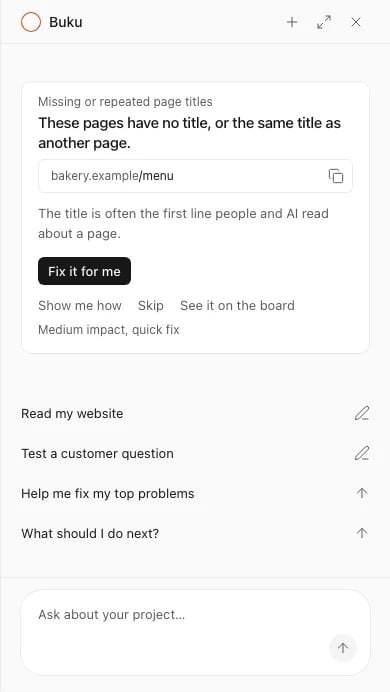
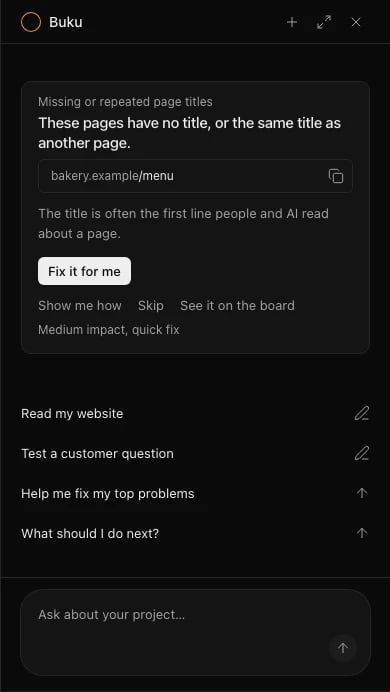
A problem card with example data.
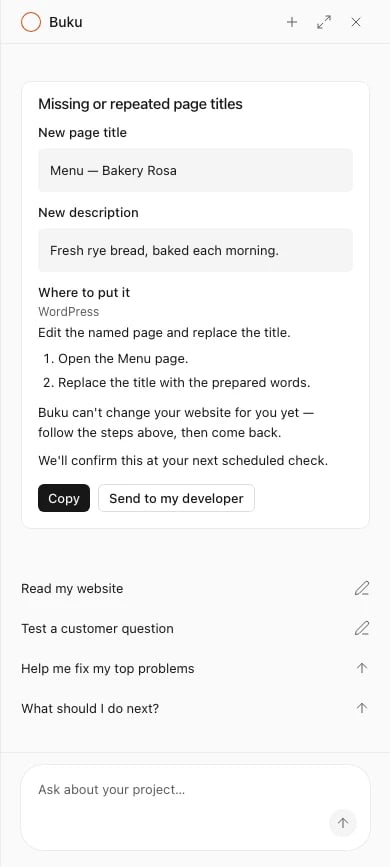
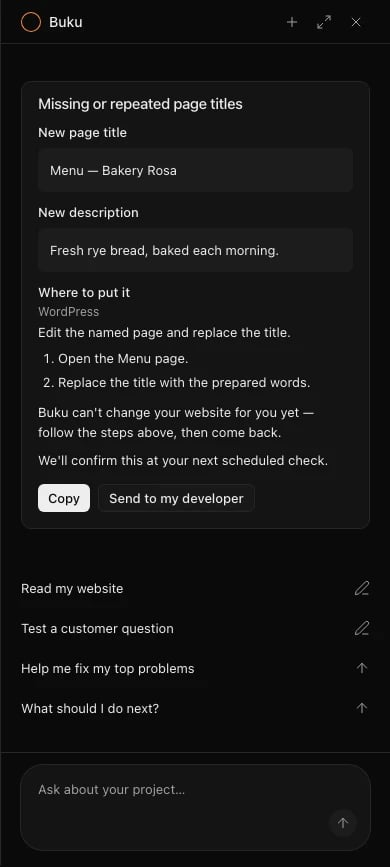
A prepared fix with its placement steps.
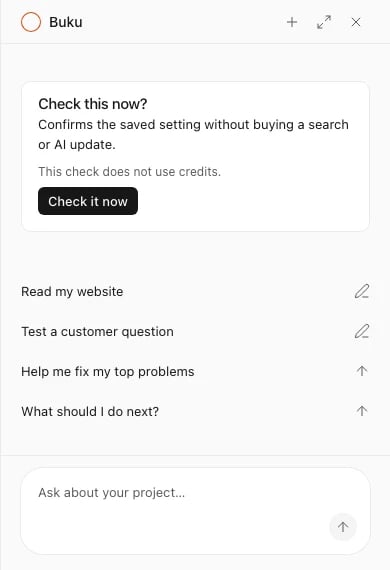
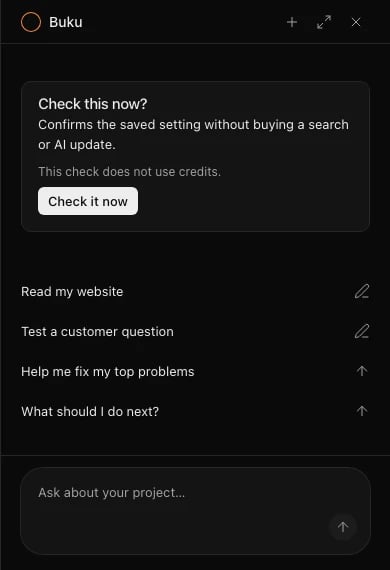
A confirmation that does not use credits.
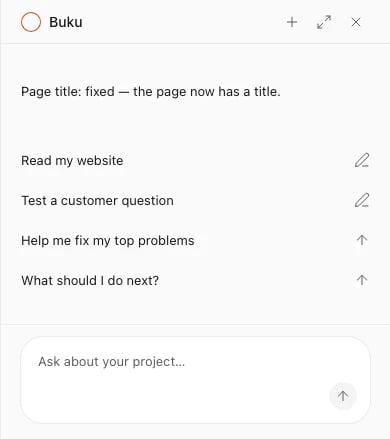
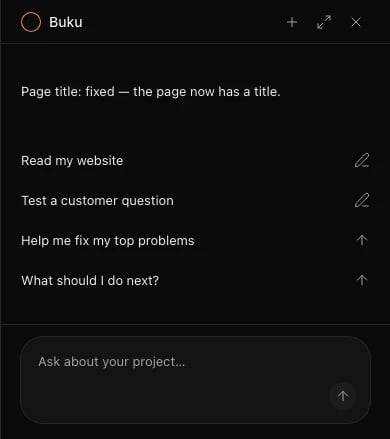
A verified result.
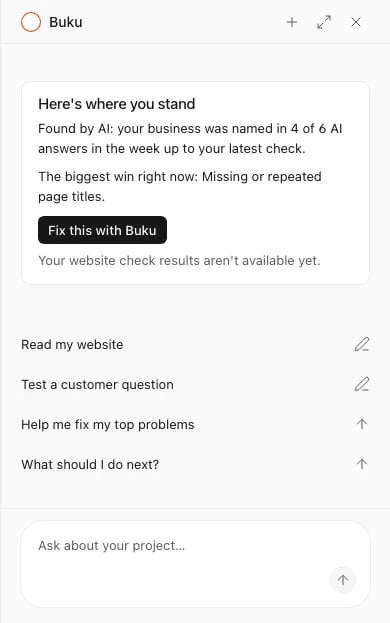
Saved results and one next step.
Add or change an offering
Buku can show repeated searches or requests for a saved business term, with a count from the last 30 days. These are searches or requests, not a number of customers. Prepare a response shows the preparation cost first; you see the proposed addition before Apply. Set its price in Your app → What you sell. Skip hides this version of the opportunity. For an existing offering or an imported term, Buku may suggest answers instead of another item. It asks you to type the questions and confirm the public facts in your own words. Missing facts lead to another question. Copy copies the prepared answers for your own materials; preparing or copying does not save them in your app or confirm that buyers can see them. The prepared answer card leaves out the saved demand term, search or request count, and last-seen time. This works independently of competitor watching. Where Buku offers a response about what you sell, it can prepare a name and short description for Your app → What you sell. Apply shows what will be added or changed before you save it. Buku never sets a price: a new offering has no price, and an update keeps its existing price. Set or change the price in Your app → What you sell. Buku asks you for any missing facts before offering to save the change. Check it now confirms the offering is visible in your app with the prepared words. Services must be changed in Your app → What you sell. These changes do not yet appear in Changes or have an Undo there. When Buku offers to change your business details, Save this? shows each detail that changes: what it is now, and what it becomes, in full. An empty detail says Not set, and one Buku clears says Removed. When a booking page or email would go to a different website, the card says so under it, for example Opens on …, not …. Check that address before you press Apply: customers use it as soon as it is saved. If a detail changed after Buku prepared the card, nothing is saved; ask Buku again for the current details.Meet Buku
With your guide on, Buku introduces itself the first time you arrive on your project home after your first website check finishes. If you are writing or Buku is already open or replying, the introduction waits. Choose Show me around for a short tour, Just show me what to do for your checklist, or Later to continue on your own. Later prevents the welcome from opening again by itself. Escape makes the same choice. Where Buku walks you through setup page by page, the welcome offers Let’s start and Later instead. See Getting started with Buku.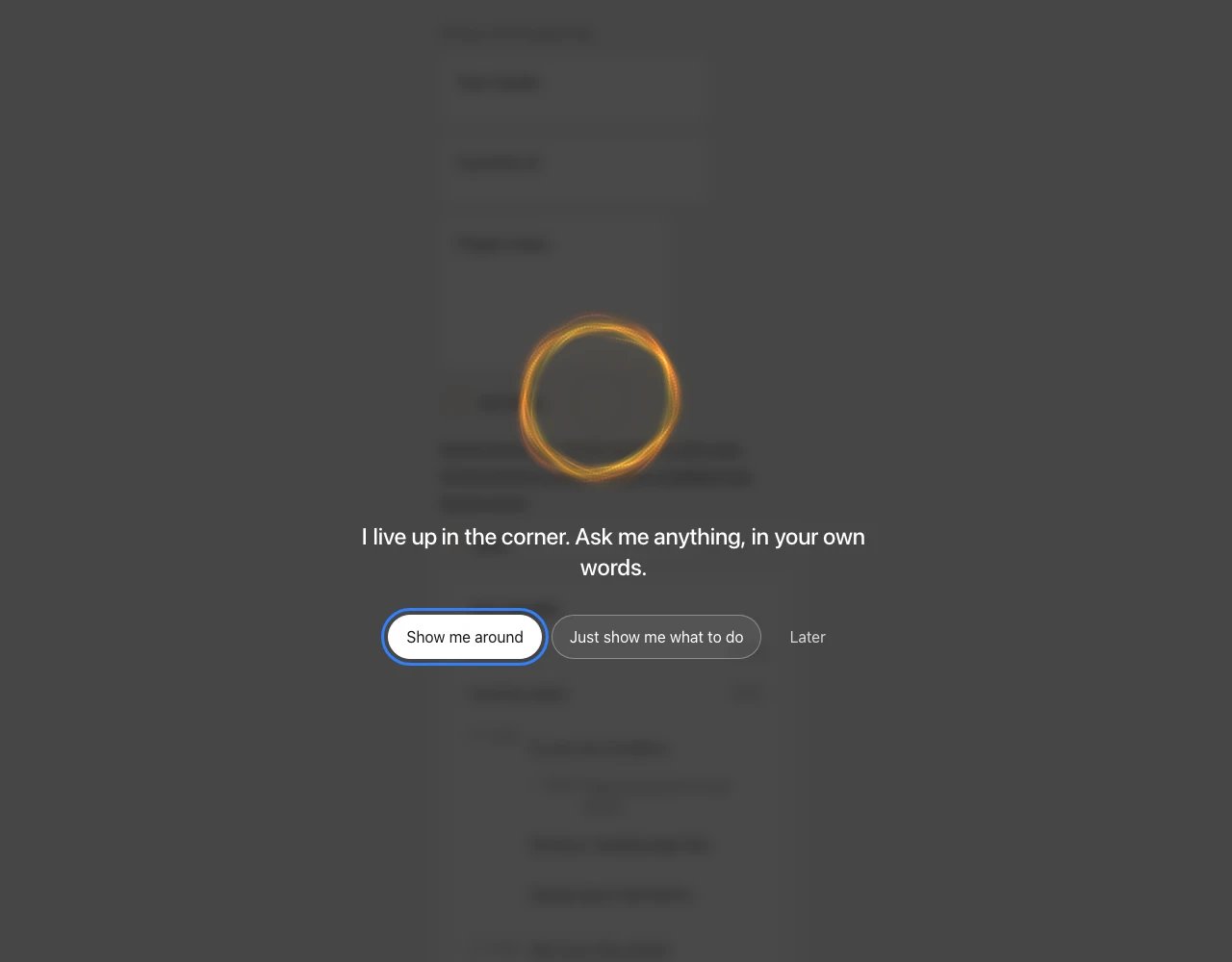

The welcome, shown with example data.
Take a tour or replay the welcome
Ask Buku to show you around, then choose Show me around in its reply. The tour points out your results, Found by AI, the project menu and, on the Dashboard, the box you write to Buku in. Choose Next to continue, Done to finish, or Skip to leave.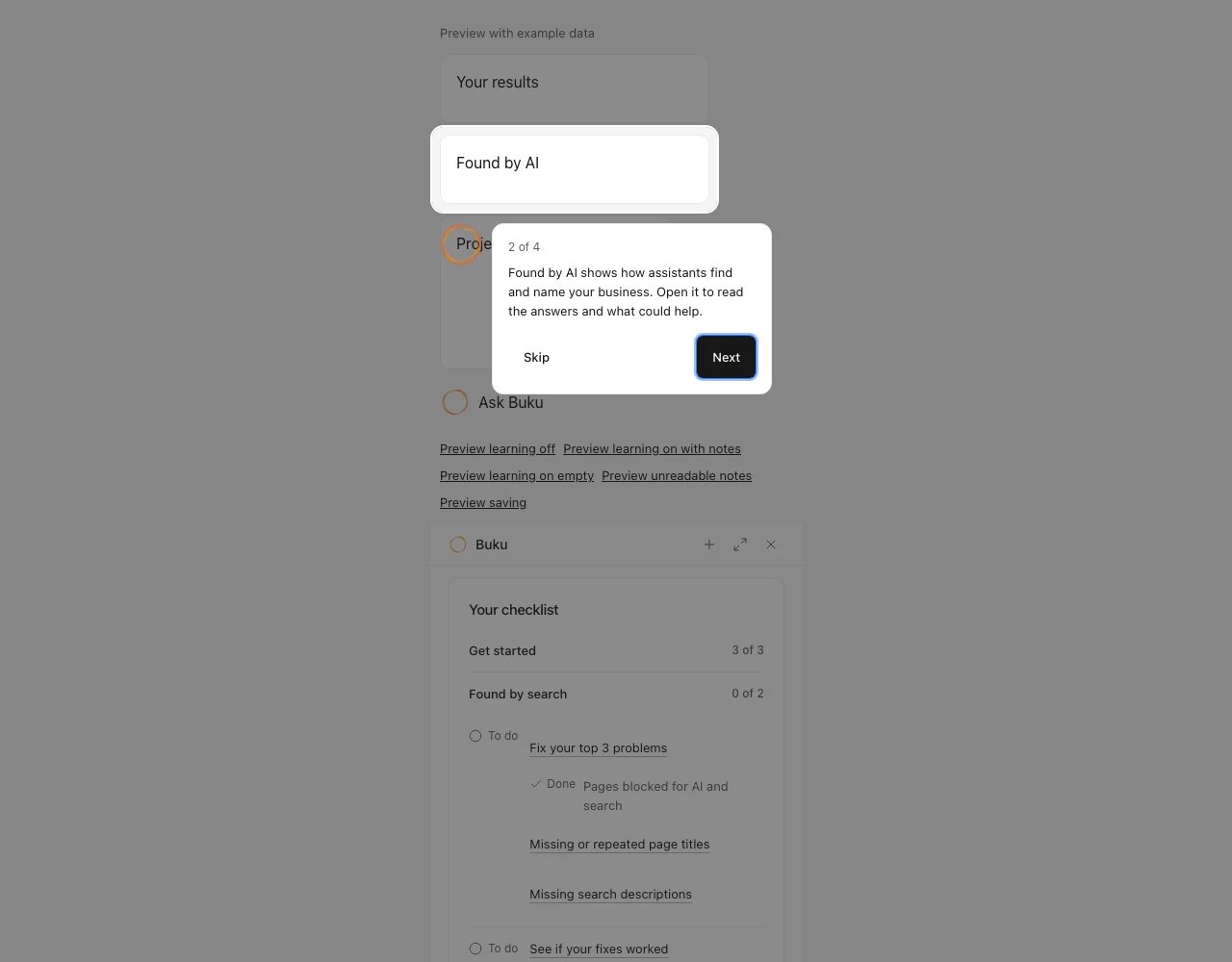
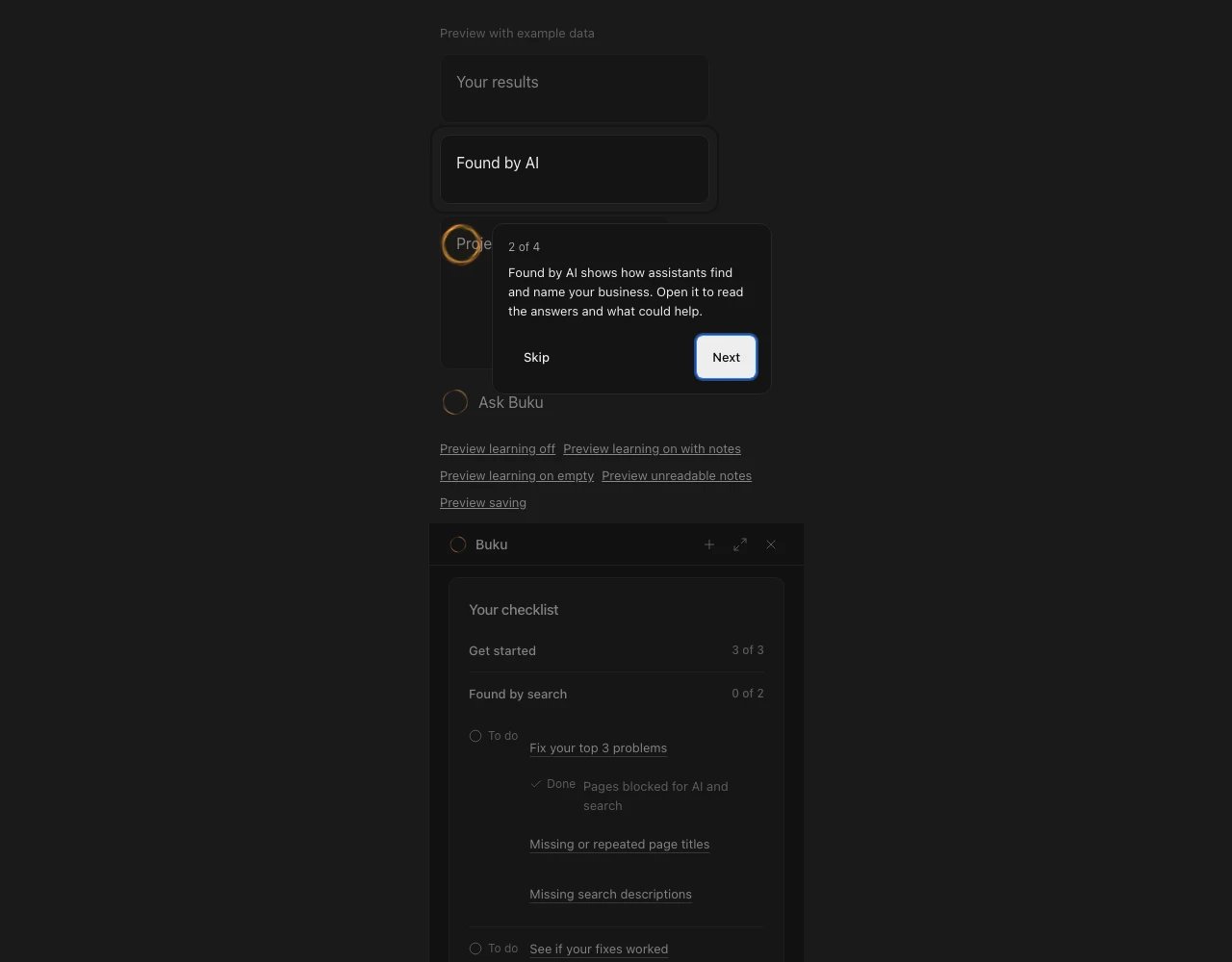
One step of the tour, using example landmarks.
Choose what Buku learns
Learning starts off. Ask What do you know about me? and choose Turn on if you want Buku to remember short work notes for you in this project. Your choice belongs only to you in this project. Only you see these notes here. Buku uses them to help with replies and order updates; it still shows every problem and checklist step.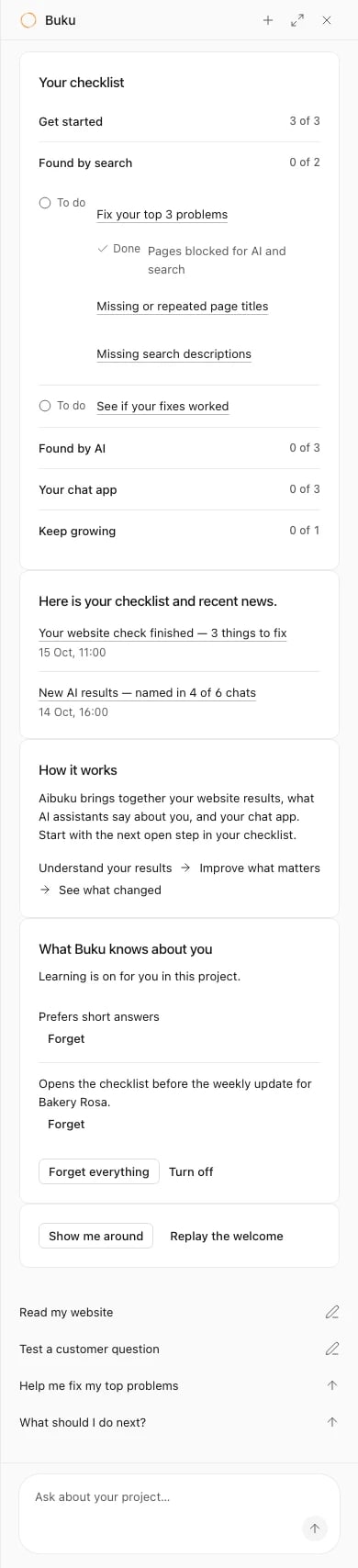
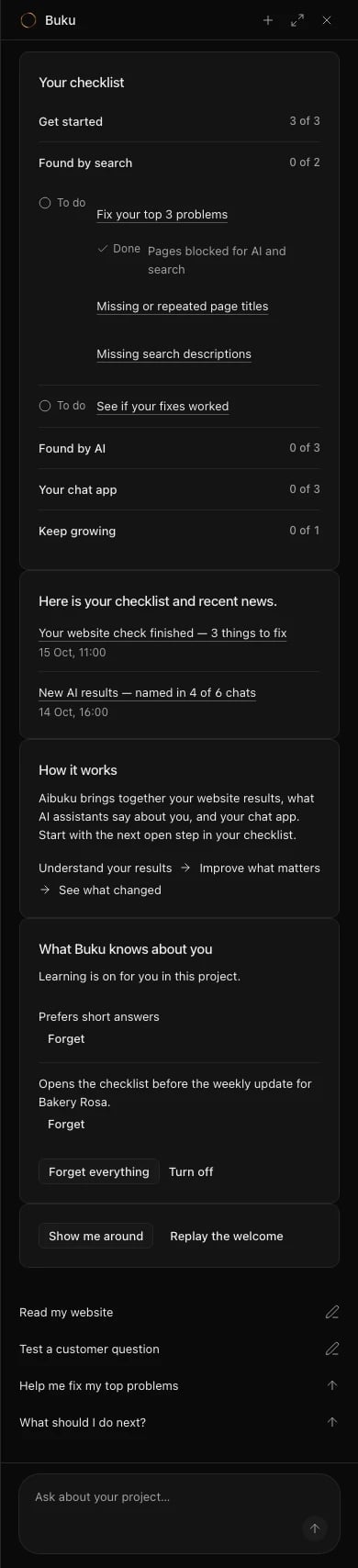
Learned notes with example data.
Change your Buku choices
Open the project’s General settings and choose Buku in On this page.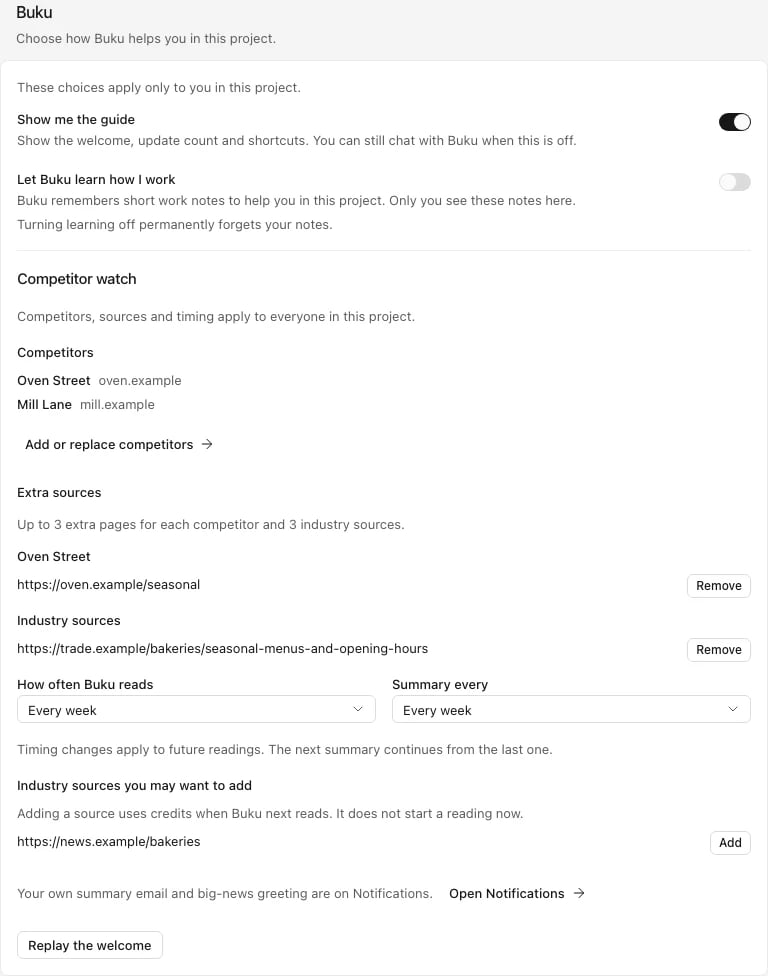
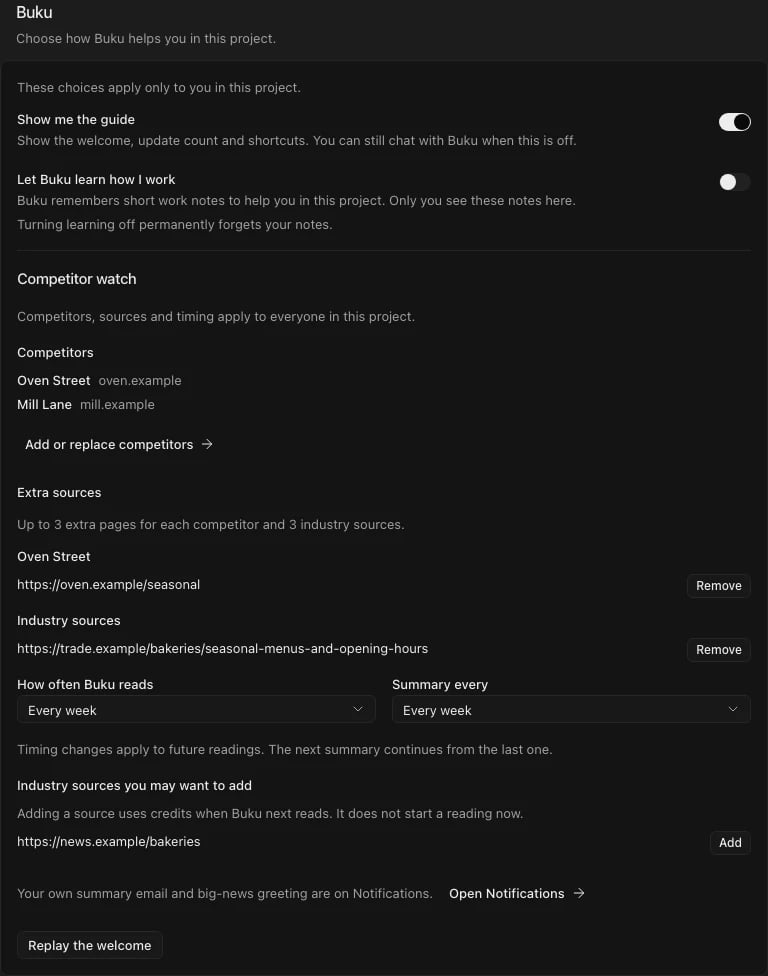
Your personal Buku choices, shown with example data.
- Show me the guide starts on. Turning it off hides the automatic welcome, update count, guidance shortcuts and big news moments. You can still open Buku and chat. It does not change your learning choice or forget your notes.
- Let Buku learn how I work starts off. Turn it on to let Buku remember short work notes. Turning it off asks you to confirm Turn off and forget.
- Replay the welcome starts the introduction again while your guide is on and you have access to the project chat.
Ask Buku something only the web knows
Buku can search the web and read public web pages. Ask it what a competitor charges, when a supplier is open, or what a page says, and it looks it up instead of guessing.Web search is being introduced gradually. If Buku says it cannot search the
web, it is not on for your project yet.
- Buku knows today’s date and time where your business is, so “this weekend” and “next month” mean your days. It uses the timezone in your business details.
- Buku only reads pages. It never changes your business because a web page says so. Anything it suggests still waits for you to save it.
- Buku reads only public pages. It does not open private or internal addresses.
- One message can search a few times and read a few pages. For a bigger question, ask in parts.
- A search or page that does not work costs you nothing. Buku says it could not read it and does not make up the answer.
Ask Buku about your Notion pages
When your project has Notion connected on Connected apps, ask Buku about the pages you shared with it, for example What did we write about the summer menu? Buku searches and reads those pages and their comments, and answers from them. If Notion isn’t connected yet, Buku says so and links to Connected apps. Buku can add a page or a comment too, for example Add our summer menu as a page in Notion. It shows a card first, such as Add a page in Notion, with what it will add, and nothing is added until you choose Save in Notion. It can add text to, change, move or delete a page you shared with it the same way, for example Add this ad copy to the end of my Black Friday page. or Move the spring menu page under Archive.: the card shows what changes (for added text, where it goes and the text itself) and how to undo it in Notion, and nothing changes until you choose Save in Notion, Move in Notion or Delete in Notion. Buku can also bring back a page from Notion’s Trash, for example Restore the page you just deleted.: a page you give it a link to, or one Buku itself moved to the Trash in the last 30 days. Its card shows the page and where it goes Back to, and nothing changes until you choose Restore in Notion.- One message can search and read a few times. For a bigger question, ask in parts.
- Buku reads only the pages you shared with its Notion login, and only in this project.
Ask Buku about your Google numbers
When your project has Google connected on Connected apps and its properties picked, ask Buku how a page or your whole website is doing on Google, for example How did my home page do last week? or Which searches bring people to my pricing page? Buku reads your own Search Console and Google Analytics numbers and answers with them: clicks, views, how often a view became a click, your average place in Google’s results and the searches people used (for your whole website, its top pages instead), and from Analytics the key events on that page, or its visits when you have no key events set up. It says which of the two it used. While it reads, its step says Read your Google numbers.- Without a time, Buku reads the last 28 days. Search Console’s newest numbers take a few days to become final, so its 28 days end three days before today, as Search Console’s own Last 28 days does; Analytics’ end yesterday. Days follow Google’s clock, in Pacific Time. Buku says which dates each one covers. Ask for last week, a month or two dates instead.
- When the days you ask about reach into Search Console’s last three days, Buku reads them and adds Google’s numbers for the last few days aren’t final yet. The same goes when you ask about the newest days themselves.
- Search Console keeps 16 months of numbers and Analytics 14, so Buku can’t read further back.
- The page must be on your website, the one your Search Console property covers. If only your Analytics property is picked and your project has no website saved, give the page’s path, such as /pricing. Given a full address, Buku says Without your website, Buku can’t check a full address. Give the page’s path instead, such as /pricing.
- One message can read your Google numbers up to four times. For a bigger question, ask in parts.
- If Google isn’t connected yet, Buku says Connect Google on Connected apps. with a link; everyone but an Admin is asked to ask an Admin. If a property isn’t picked, Buku says which one, for example Pick your Analytics property on Connected apps., and still answers from the other.
- If Google isn’t ready on Aibuku’s side, Buku says Google isn’t ready on Aibuku’s side yet. This isn’t something you need to fix. Ask again later.
- Anyone in the project can ask. Buku only reads: it never changes anything in Google.
Ask Buku to change words on your website
When your project has GitHub or your own WordPress site connected on Connected apps, ask Buku to change some words on one of your pages, for example On my pricing page, change “Fresh bread daily” to “Fresh bread every morning”. Buku checks the words are on that page now and shows the change on a card, Change on your website, with Now and After. Nothing changes on your website until an Owner or Admin chooses Publish on the card, and Undo puts the old words back. Only a project’s Admins and Developers can ask.- On GitHub, see What Buku does in GitHub.
- On your own WordPress site, see Publish a change to your WordPress site.
- With both connected, an Admin picks which one publishes: see Pick which app publishes your website.
- Wix, Webflow and WordPress.com connect for reading only. If they are your only website apps, Buku says so, for example I can’t change words on your website through Wix yet.
Add what you sell by typing it
You do not need a website or a file to add what you sell. In the app room, type or paste your items in a message, with prices if you have them, for example Add my pizzas: Margherita €9, Diavola €11. This works before and after your app is built. Buku lists the items in its reply and offers the card Add what you offer, with each item’s name, description and price as you wrote them. Items you already offer are shown unticked and marked Already in your offerings. Untick anything you do not want, check each price, and press the add button. Nothing is added until you press it, and nothing is added twice.Send Buku a file or a photo
You can give Buku a photo, a PDF, a spreadsheet or a text file, as you would in any chat. Press Attach files beside the message box, in the app room or in Buku’s panel, drop a file onto the box, or paste a picture. You can attach up to 4 files to one message.Attaching files is being introduced gradually. If you do not see the
paperclip, it is not on for your project yet. Buku only asks you for a file
where you can attach one; without the paperclip, type or paste your items
instead.
- Photos: JPG, PNG, WebP, and iPhone photos (HEIC). Buku looks at the photo itself. If your browser cannot open an iPhone photo, save it as a JPG first.
- PDFs: Buku reads the text of each page. A scanned PDF has no text to read; attach its pages as photos instead.
- Spreadsheets: CSV and Excel (.xlsx). Buku reads every sheet by name.
- Text files: plain text and Markdown.
Use a photo for your ads or an offering
Attach a photo and say what it is for, for example “use this for my ads”. Buku offers it on a card, already filled in with your photo:- For your ads, the card is Add a photo for your ads. A photo for an ad must be at least 640 pixels on each side.
- For any of your offerings, the card is Use your photo.
Add what is on a menu or price list
Attach a menu or price list and ask Buku to add what is on it. Buku lists what it found in its reply, and offers the card Add what you offer, with each item’s name, description and price as the file writes them. Items you already offer are shown unticked and marked Already in your offerings; every other item starts ticked. Untick anything you do not want, check each price, and press the add button, which counts the items you keep ticked. Nothing is added twice. You can change them later under Your app → What you sell.- Buku never saves anything from a file by itself. Only your save on a card changes your business.
- A file Buku cannot read costs you nothing.
- Buku can read a file again later in the same conversation. Ask it.
- Files you send Buku are kept 30 days after the conversation’s last message, unless you save them. A photo you saved as an offering’s picture, or offerings you added from a menu, stay as long as you use them.
What Buku won’t do
Buku helps with almost anything you ask, not only Aibuku. It won’t help with harmful things, such as breaking into accounts, tricking people, spam, fake reviews, threats, collecting people’s personal details without their permission, or getting around Aibuku’s rules. It says so in one sentence and suggests something it can help with instead. Buku only ever changes your own project, or adds to or changes an app you connected after you save its card, and it treats what it reads as information, not orders:- Your website pages, other web pages, files you attach, competitors’ news and saved notes are things Buku reads. If a page or a file tells Buku to do something, Buku ignores it.
- Pages in an app you connected, such as Notion, are things Buku reads too. Buku adds, changes, moves, deletes or restores something there only after you confirm it on its card (Save in Notion, Move in Notion, Delete in Notion or Restore in Notion), changes only what you can undo there, never sends anything to people from there, and it uses a page or link from that app only when you named it or Buku’s own search found it.
- Your Google numbers are things Buku reads too. The searches in them are what people typed into Google; Buku treats them, page addresses and your properties’ names as information, never orders. Buku never changes anything in Google.
- Buku never uses an email address or a web address it found on a page unless you type it or confirm it yourself. It opens a web page only when you gave its address or a web search found it.
- Links in Buku’s replies open only for Aibuku pages, your own website, the competitor sources Buku saved and the web pages Buku read for that answer. Any other link shows as plain words. Links to other websites open in a new tab.
- Spending credits, sending an email and making something live always wait for your click, even when Let Buku make changes you can undo, without asking is on.
- If you send many messages in a short time, Buku asks you to wait a minute. There is also a daily limit for each person and each project. A very long request stops partway; ask for one part at a time.
Follow your competitors
Buku brings saved news, website changes and events into your updates.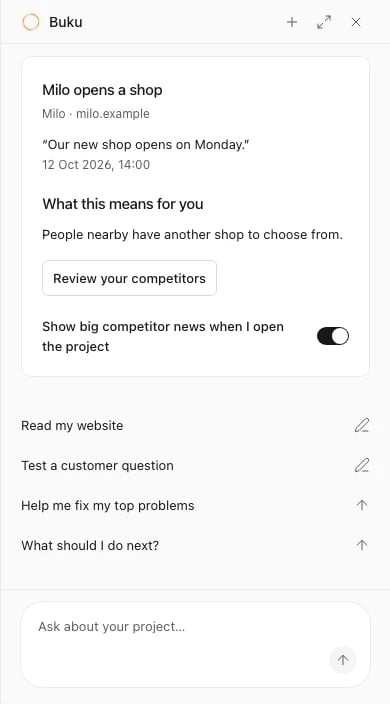
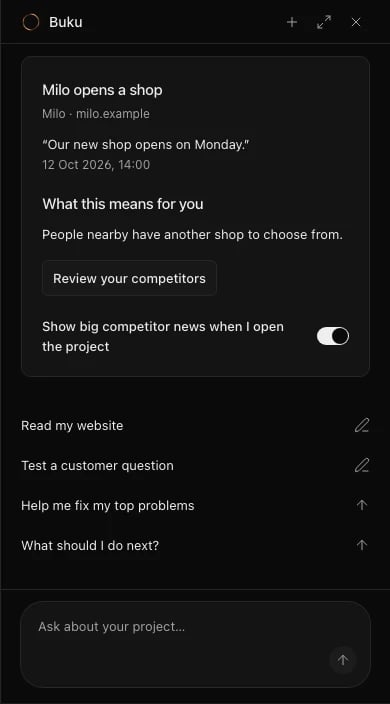
A saved competitor update, shown with example data.
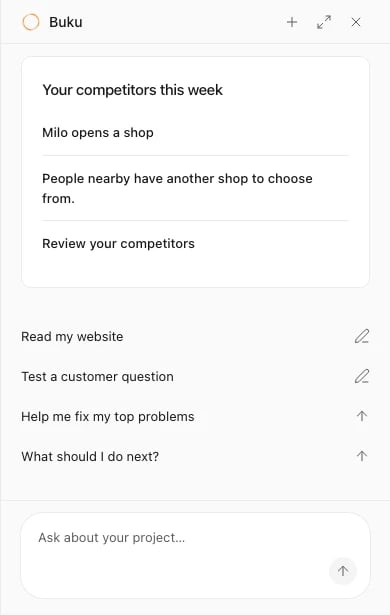
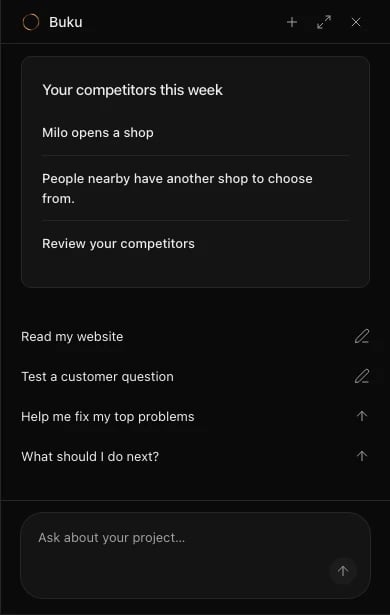
A competitor summary, shown with example data.
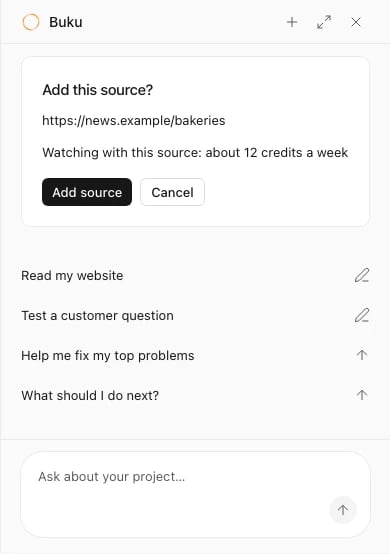
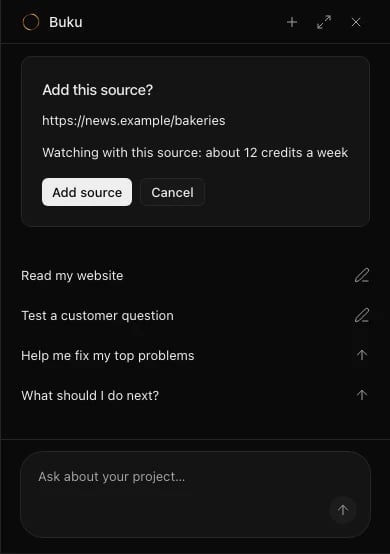
A confirmation before adding a source, shown with example data.
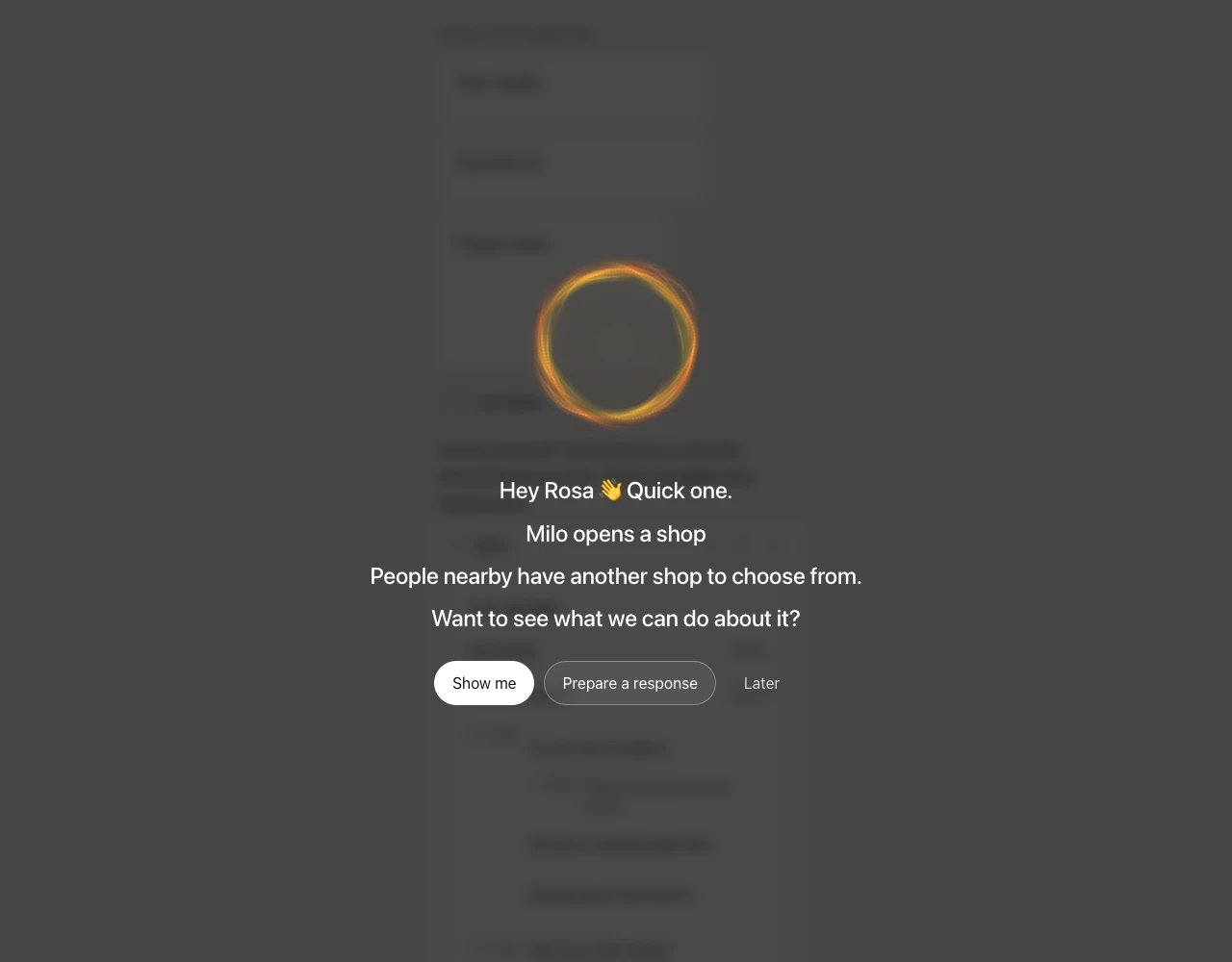

Important news from Buku, shown with example data.
Manage competitor watching
Open General settings and find Competitor watch inside the Buku card. It holds the choices for everyone in the project. Your own email and greeting choices are on Notifications.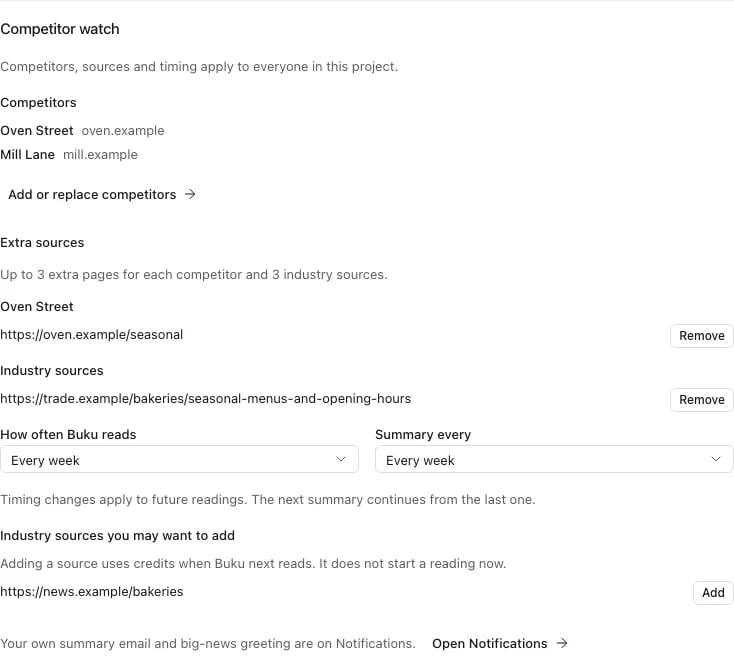
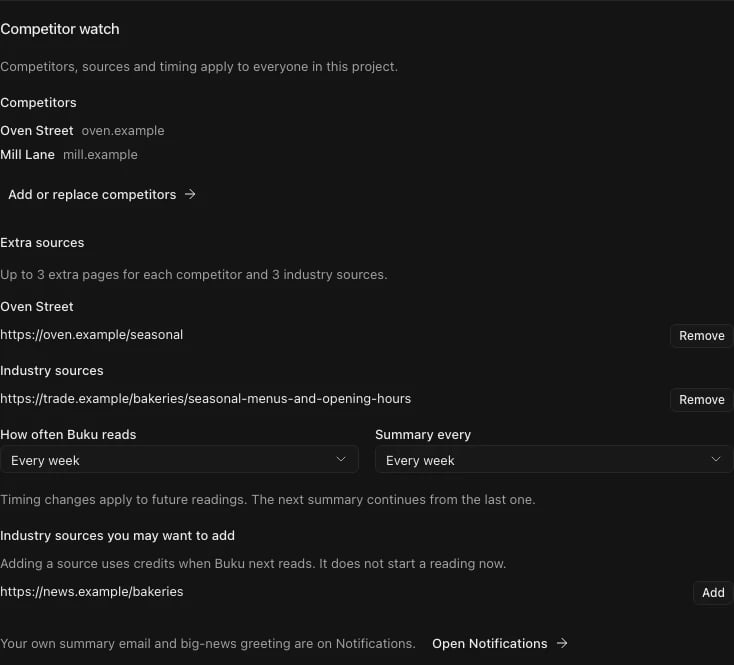
Competitor watch inside Buku settings, shown with example businesses.