

Set a share
- Open the Usage page.
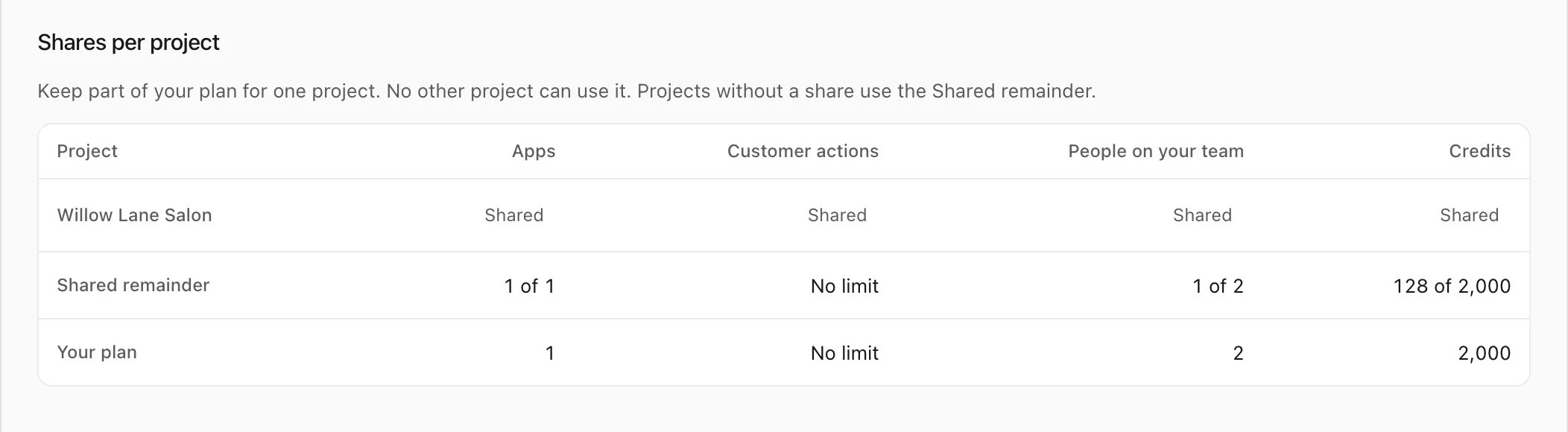
- Under Shares per project (Shares per client in an agency workspace), find the project’s row.
- Choose its cell under Apps, Customer actions, People on your team or Credits. The cell shows what the project uses of its share, for example 1 of 2, or Shared when it has no share.
- Type the share and choose Save, or press Enter. Cancel, or Esc, leaves it as it was.
Share credits
A credit share is a number of your plan’s credits for each billing period. It starts again each time your plan’s credits renew. Under Credits, Your plan is the same total as the credits line at the top of Usage for this period, including credits added when you move to a bigger plan part-way through the period. Credits you buy on top are not part of it. During a trial, shares are measured against the plan’s monthly credits, not the trial lot the credits line shows. The cell shows the credits the project has used this period, for example 1,235 of 2,000.- A project with a share spends its share, then any credits you added to it. Projects without a share spend what is left: the credits no project keeps, and the credits you bought on top of your plan that aren’t added to a project.
- Shares of credits never add up to more than the credits your plan gives each period.
- Once your business is live, scheduled work in a project with a share stops a little before the share and any credits added to the project are used up: the last part is kept for customers using the project’s app and for work you start yourself, as your plan keeps a part of its credits for them. Until then, nothing is kept back (see Credits). When scheduled work stops this way, the note at the top of the page says Scheduled work is paused. Adding credits to the project lets its scheduled work run again. A bigger plan or a new credit pack doesn’t add to a share (pack credits go to the Shared remainder until you add them to a project), so an owner or admin gets Split credits between projects there instead.
- When a project has used its share and the credits added to it, work in that project that uses credits is paused, and its app tells customers it is temporarily unavailable, until the share renews, you give it a bigger one, or you add credits to it. Your other projects carry on.
- During a trial you can set credit shares, but they don’t pause anything yet. They count from your first paid period.
- When a project has used its share and the credits added to it, you get one email about it at the address your bills go to, once per project each billing period. It names the project, and its Split credits between projects button opens that project’s row. People you invited to the project never get it. A share of 0 stops a project using credits on purpose, so it sends no email.
- Once a project has a credit share or added credits in a paid period, your workspace’s credits left are kept from team members who aren’t an owner or admin. Added credits count here until the credit pack they came from ends, even once the project has spent them. Before a run in a project without a share, they see only whether the run fits, and the note about monthly credits isn’t shown to them when they add prompts. Owners and admins also see how many credits are left. In a project with a share, everyone who can open it sees what is left of its share, unless your workspace has fewer credits left than the share has: then only owners and admins see the number, and everyone else sees only whether the run fits.
- During a trial, or while no project has a credit share or added credits from a pack that hasn’t ended, everyone who can start a run sees your workspace’s credits left, as before.
Add credits to a project
If you bought a credit pack, you can move some of its credits to one project. Only that project can spend them.- Open the Usage page.
- Under Shares per project (Shares per client in an agency workspace), find the project’s row and choose Add credits.
- Type how many credits, then choose Add credits.
- The project spends its share first, then the credits you added. A project without a share spends what the projects without a share have left, then the credits you added.
- The credits you added don’t renew. They last until the credit pack they came from ends.
- You can add up to what one of your credit packs still has that isn’t already added to a project. The window says how many. While your credit packs have nothing left to add, Add credits isn’t shown.
- You can’t move added credits back. If you delete the project or move it to another workspace, what it hasn’t spent goes back to your workspace.
- Added credits don’t change what is kept back for customers using the project’s app: that part is still taken from its share, or, for a project without a share, from the Shared remainder.
- Under Credits, the project’s cell still shows its share, or Shared, with a line under it: what is left of the credits you added, and the day the first of them ends, for example 380 added credits left · until 3 Dec. Only owners and admins see that day.
- During a trial you can’t add credits to a project yet, so Add credits isn’t shown. It appears from your first paid period.
- When a project has used its share and the credits you added, its work that uses credits is paused, as when it has used its share (see Share credits). A project without a share is paused when the Shared remainder and the credits you added to it are both used.
What a project’s team sees
A project’s share and its added credits are shown only under Shares per project on the Usage page, which owners and admins see. The project’s dashboard doesn’t show them. People you invited to one project never see your other projects, your plan or your plan’s totals. What its team reads when the project reaches its share is in the next section.When a project reaches its share
When someone adds an app or a customer action past the project’s share, it isn’t added. An owner or admin reads, for example, Bike shop has used its share of Apps (2 of 2). with Split credits between projects. Anyone else reads that the project has used its share and to ask the workspace owner. For credits, an owner or admin reads, for example, Bike shop has used its share of Credits (2,000 of 2,000). and Give it a bigger share, or wait until its share renews with your plan., with Split credits between projects. Buying credits doesn’t raise a share. While your credit packs have credits to add, the second line reads Give it a bigger share, add credits from a pack, or wait until its share renews with your plan., and Add credits follows Split credits between projects. It opens the same window as on the project’s row, so you can add credits to the project without leaving the page. During project setup, Add credits takes you to the project’s row on the Usage page and opens that window there. Anyone else is asked to ask the workspace owner for a bigger share. When the projects without a share have used the Shared remainder of credits, and any credits added to the project, an owner or admin reads Buy credits, or lower another project’s share., with Buy credits and Split credits between projects. Anyone else is asked to have the workspace owner make room. When what your workspace has left is all credits you added to other projects, and no share has credits left, a project without a share or added credits of its own can’t use them. An owner or admin reads The credits left are added credits other projects hold. Buy credits to make room for projects without their own., with Buy credits only: lowering another project’s share wouldn’t help. Anyone else is still asked to have the workspace owner make room. When the projects without a share have used the Shared remainder, the note has no numbers. An owner or admin reads that the Shared remainder is used up, for example Apps: the Shared remainder is used up., and gets Split credits between projects; the numbers are in the table it opens. Anyone else reads that the project uses the apps the workspace shares and none are left, and is asked to have the workspace owner make room.Share people on your team
A share of People on your team keeps places on your plan for one project’s own people, for example a client’s staff.- Someone you invited to one project only counts towards that project’s share. If they are in two projects with a share, they count towards both.
- An invitation to a project counts from the moment you send it, until it is accepted, revoked or expires.
- People in your workspace itself (owners, admins, members and billing), invitations to the workspace, and the people of projects without a share count towards the Shared remainder. Giving a workspace member access to a project never uses that project’s share.
- Your plan still counts each person once, however many projects they are in.