
The welcome
The first time you open your project after setup, Buku greets you on your dashboard: Give me a few minutes and we’ll set everything up together.- Let’s start begins the walk.
- Later lets you look around first. The walk waits at its first step. When you are ready, choose Continue: General at the top right of the page.

How each step works
Buku shows a short note next to the thing it means and highlights it. The note says how far along you are. The page under the note keeps working, so you can click, type and save as usual. A step moves on when you really do it: you open the page, save your details, add a customer, or start measuring. Buku sees it in your project, so you never press a next button. A step that only shows you something has Got it. A step that asks you to check something has Looks right. Every note also has:- Pause — stops the walk. Buku remembers where you were.
- Skip this step — passes this step and goes to the next one.
Continue where you left off
While the walk is paused, Continue sits at the top right of the page. It names the page the next step is on, for example Continue: General. Choose it to pick up where you stopped. When you ask Buku what to do next, it answers with Your next step: the step you are on, and a Continue button. It does not show a separate checklist while you are on the walk.
The four pages
The walk visits four pages, in this order.1. General
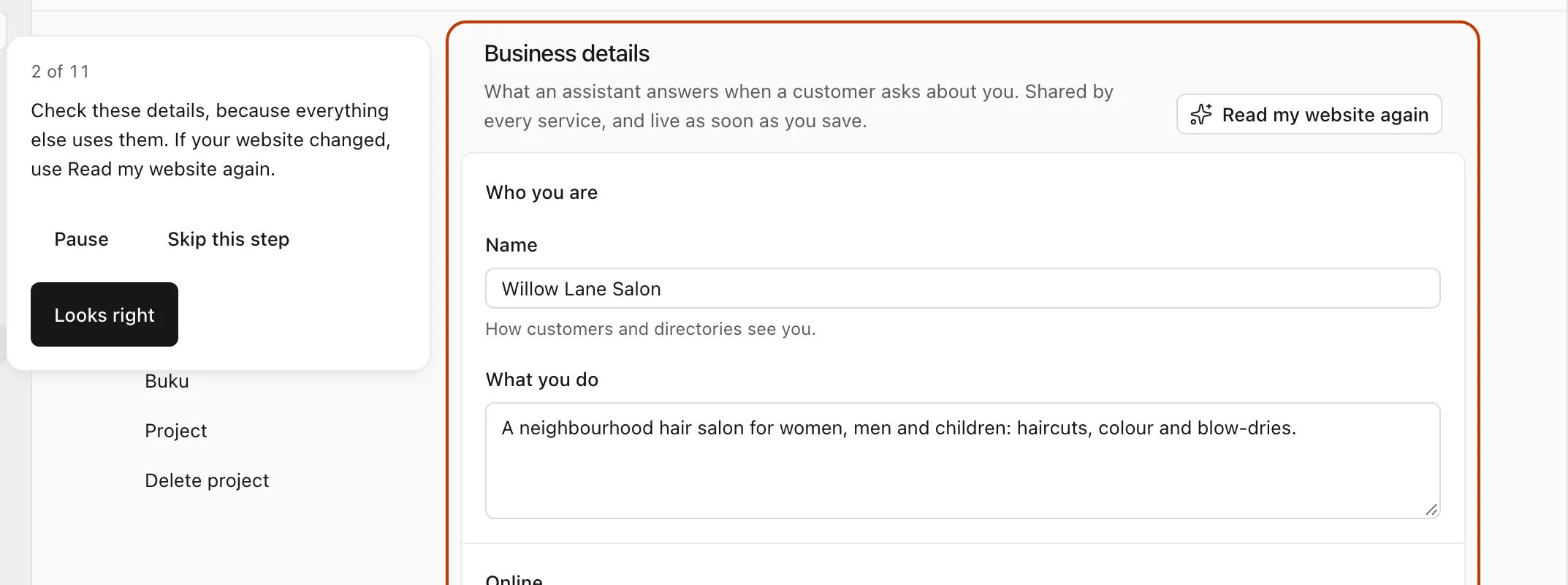
Buku points at General in the side menu. This is where your business details live. Buku asks you to check them, because everything else uses them. If your website changed, use Read my website again. When the details are right, choose Looks right. If you change something, Buku points at Save so the change is kept.2. Prompts
Prompts are the questions your customers ask AI. Buku points at Prompts in the side menu, then:- asks you to check your customer’s country and language, from the menu on your customer. Add a city if you serve one place. Any country works, and any city of 15,000 people or more; the language is one of 24 languages. Choose Looks right when it is right.
- asks you to add the customers you most want to reach with Add customers, if there are none yet.
- explains your prompts: they go from just chatting to asking for you by name. Choose Got it.
- points at New prompts, if this customer has no prompts yet.
3. Search presence
Here you see who you compete with. Buku points at Search presence in the side menu, then:- asks you to start a check with Start a run, if none has started yet. A check asks the AI assistants your customer’s questions.
- shows the competitors we found. You know your market best, so add, remove or change them. Choose Got it.
- asks you to choose Start measuring when you are happy with the list.
4. To do
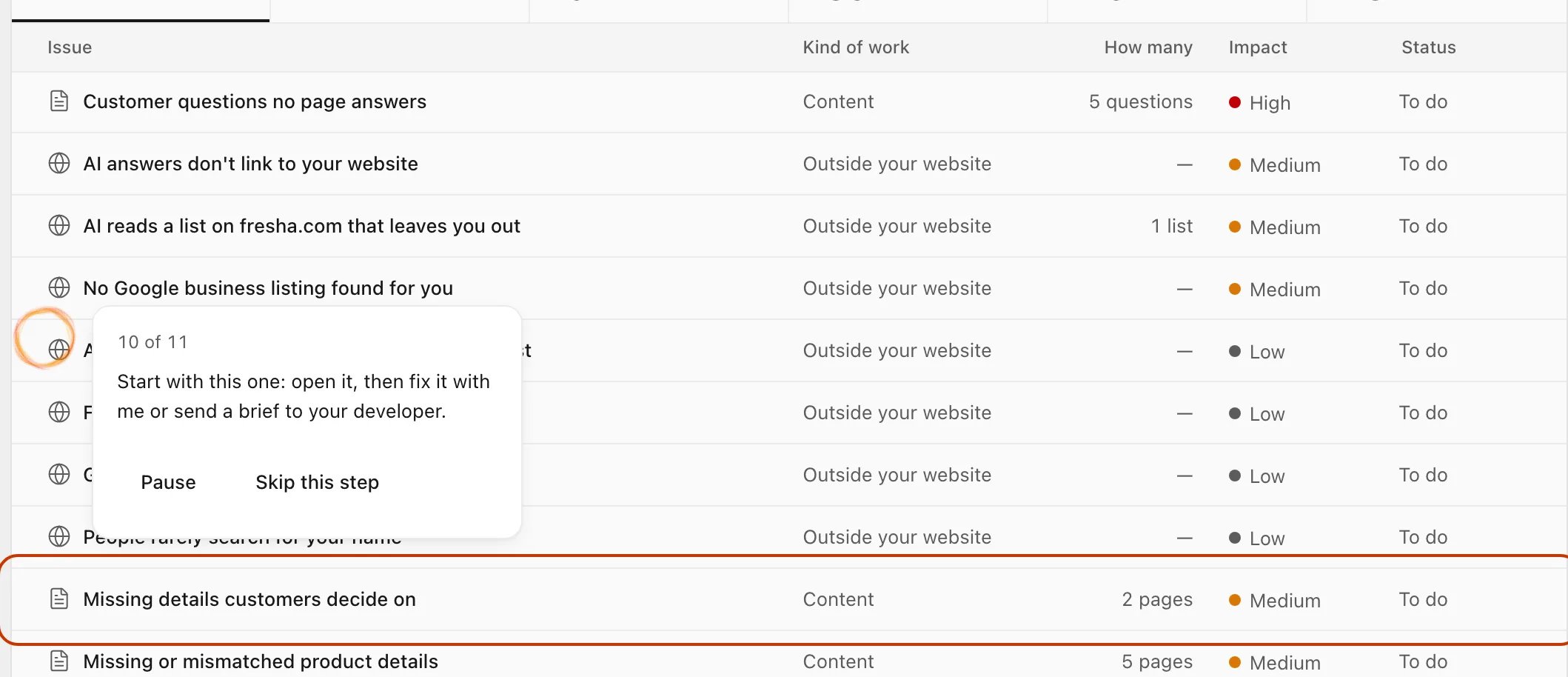
Buku points at To do in the side menu. This is your to-do list: things to fix on your website. The ones marked Big impact matter most. Choose Got it. Then Buku points at the fix to start with. Open it, then choose Ask Buku to help to fix it with Buku, Copy a prompt for an AI agent to hand it to an AI tool that can change your website, or Copy a brief for my developer to send it on. Any of them moves the fix to Doing.